
KNP, KBK, UGD codes and countries
Why you need this
KNP (payment purpose code), KBK (budget classification code), the UGD (state revenue office) code and the country of residence are state classifiers. The bank and the tax authority require them in payment orders, invoices and company details: the code shows what a payment is for and where to credit the money. Payda maintains these reference books itself — you only pick a value.
What you need
- Nothing to prepare: the reference books are already filled in. A code or a word from its name is enough to search.
- For UGD codes — a selected company: only an organisation has company details.
Step by step
A value is picked the same way in all four reference books. Below is the general procedure, followed by where each field appears.
How to pick a value
Press the magnifier icon on the right of the field — the reference book opens in a side panel.
Type a code or a word from the name into Поиск (Search) — only matching rows stay in the list.
Tick the row you need and press Выбрать (Select). Отменить (Cancel) closes the panel without choosing.
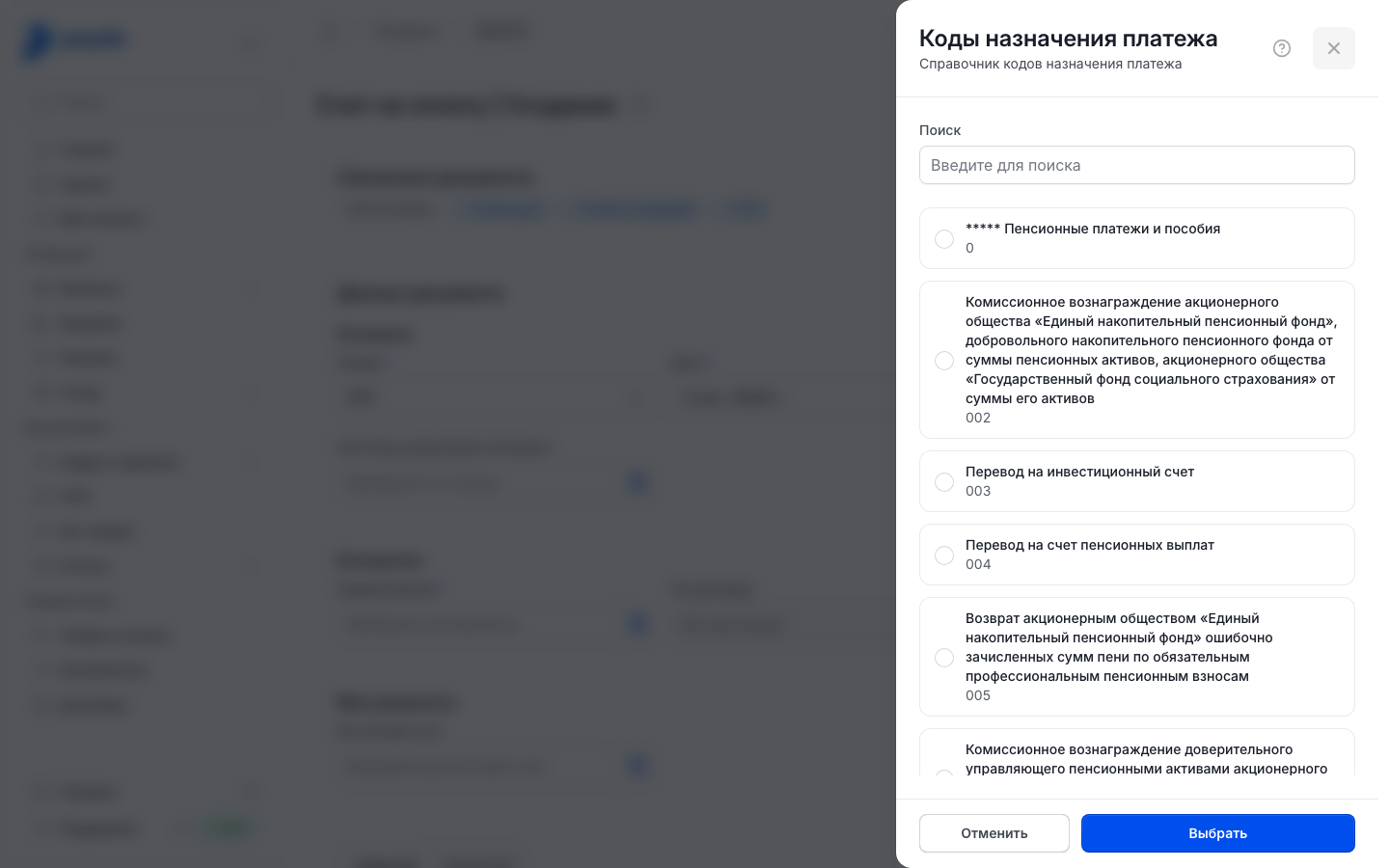
You can also search right in the field: start typing a code or a name and pick a row from the dropdown list. On a phone the KNP reference book opens as a panel from the bottom of the screen; the steps are the same. In the deal wizard on a phone, the Справочник (Reference book) item in the field's dropdown list opens it too.
You cannot add your own code or change an existing one: Payda maintains the lists.
KNP
KNP (payment purpose code) tells the bank what the money is for. The reference book opens in the Коды назначения платежа (payment purpose codes) panel; each row shows the name with the code below it.
Where the field appears:
- Invoice — the КНП (Код назначения платежа) field in the Основное (Main) block, required. How to issue an invoice — Invoice.
- Deal — the КНП field appears when Счёт на оплату (Invoice) is switched on and is required too, both on a computer and on a phone. See Creating a deal on a computer.
- Outgoing payment order — the КНП (Код назначения платежа) field in the Детали платежа (Payment details) block.
- Invoice in the mobile app — the required КНП field.
- Tax batch — КНП in the expanded row of a tax (more in the KBK section below).
Once you pick a code, its name appears under the field — check it against the purpose of the payment.
KBK
KBK (budget classification code) shows which tax or contribution the payment is credited to. The reference book opens in the Коды бюджетной классификации (budget classification codes) panel.
- In an outgoing payment order, the КБК (Код бюджетной классификации) field sits in the Детали платежа block. It is shown when Тип операции (Operation type) is Перечисления заработной платы (salary transfers) or Налоги, отчисления и взносы (taxes, deductions and contributions), and hidden for Оплата поставщику (payment to a supplier).
- A new order opens with the Оплата поставщику type — for salaries and taxes, change the type first.
- For taxes, choose Вид платежа (Payment kind) — KBK and KNP are filled in automatically. Details in Taxes and contributions: KBK and KNP.
- In a tax batch, KBK and KNP are shown in the expanded row of a tax: expand it with the arrow at the start of the row. Payda picks the batch codes by the tax itself, and an edit in this row is not saved — see Tax batch.
- In a created batch, each order's codes are shown in the Реквизит (Details) column. If you need a different code, open the order by clicking its row, pick the code in Детали платежа and save the order. Export the batch to the bank after that.
UGD code
UGD is the state revenue office, i.e. the tax office. UGD codes are stored in the company details; the reference book opens in the УГД panel. Each row shows the office name and its number: search by either.
- Open the company details on the Налоги (Taxes) tab — to find them, see Company details.
- In Код УГД по месту регистрации (UGD code by registration), pick the office where the company is registered.
- In Код УГД по месту нахождения (UGD code by location), pick the office for the address where the company operates. If the address is the same, the codes usually match.
- Press Сохранить (Save) — the message «Данные успешно обновлены» appears.
On the same tab, Налоговый режим (Tax regime) and КБЕ (beneficiary code) are marked with an asterisk — fill them in too.
In a tax batch, Payda uses the office from Код УГД по месту нахождения as the recipient of ИПН (individual income tax) and СН (social tax). If the field is empty, you will have to pick Область (Region) and УГД in the Получатель бюджетных налогов (Budget tax recipient) block of the batch manually.
On a phone: Профиль (Profile) → company card → Налоги tab → the pencil icon at the top of the screen → pick the codes → Сохранить.
Country of residence
The country of residence is the country where the counterparty is registered as a taxpayer. Fill it in for non-residents — counterparties registered outside Kazakhstan. The field is optional.
- Open the counterparty card — see Counterparties.
- In the Дополнительно (Additional) block, press the magnifier icon in the Страна резидентства (Country of residence) field — the Страна резидентства panel with the caption «Справочник стран» opens.
- Find the country by name or code and press Выбрать. Each row shows the short name and the numeric code, with the full name and the letter code below.
- Save the card: Создать (Create) for a new one, Сохранить when editing.
How to check it worked
The field shows the chosen value; for KNP, the code name appears under the field. UGD codes stay on the Налоги tab when you reopen the company details.
Common problems
| What you see | Why | What to do |
|---|---|---|
| «Ничего не найдено» in the panel or «Нет данных» in the field's list | The search matched no row | Search by the code digits or another word from the name |
| The code you need is not in the list | Payda maintains the reference books; you cannot add a code yourself | Contact support |
| «Обязательное поле» under КНП (Код назначения платежа) on an invoice | No code is chosen | Pick a KNP in the reference book and save the invoice again |
| No КБК (Код бюджетной классификации) field on the order | Тип операции is Оплата поставщику | For salaries or taxes, change the operation type |
| KNP or KBK on the order changed by itself | When Тип операции or Вид платежа changes, the codes are filled in again | Choose the operation type and payment kind first, then check the codes |
| The UGD code did not save | Сохранить was not pressed on the Налоги tab, or you left the tab and confirmed the «Несохраненные изменения» window | Pick the code again and press Сохранить |
| No «Данные успешно обновлены» message after Сохранить | The changes were not saved | Check the fields and save again; if it still fails, contact support |
What next
- Invoice — issue an invoice with a KNP.
- Taxes and contributions: KBK and KNP — pay a tax with a payment order.
- Company details — the Налоги tab with UGD codes.
- Counterparties — the card where you set the country of residence.