
Bank accounts
Why you need this
Your organisation's account is filled into invoices, payments, ESF (electronic invoices), deals and payment batches. A counterparty's account is needed for payments with them, an employee's account for paying salary. All accounts live in one reference book and are added right from the field.
What you need
- The account number: 20 characters starting with KZ.
- For an employee's account — the employee's saved card.
- For a counterparty's account in a payment — the counterparty already selected.
Step by step
Where to open the reference book
There is no separate page with accounts on a computer: press the reference-book icon (a sheet with a magnifying glass) on the right of any account field — the Расчетный счет (Bank account) panel opens. The caption under the title names the owner: «Расчетные счета организации» (organisation's accounts), «Расчетные счета» with the counterparty's name, or the employee's name.
| Where | Field | Whose account |
|---|---|---|
| Invoice, power of attorney | Расчетный счет in the Мои реквизиты (My details) block | Your organisation's |
| Incoming payment | Расчётный счёт получателя (recipient's account) | Your organisation's |
| Incoming payment | Расчётный счёт отправителя (sender's account) in the Плательщик (Payer) block | The counterparty's |
| Outgoing payment | Расчётный счёт отправителя | Your organisation's |
| Outgoing payment | Расчетный счет получателя in the Получатель (Recipient) block | The counterparty's |
| ESF | Расчетный счет организации (organisation's account) | Your organisation's |
| Deal | Мой банковский счёт (my bank account) | Your organisation's |
| Payment batch | Счёт списания (debit account) | Your organisation's |
| Counterparty card | Главный банковский счет (main bank account) | The counterparty's |
| Employee card | Банковские счета (bank accounts) | The employee's |
If there are no accounts yet, the field says «Нет счетов — откройте справочник» (no accounts — open the reference book). The Добавить (Add) item in such a field's drop-down opens the new account form straight away.
Adding an account
Press the reference-book icon on the right of an account field — the Расчетный счет panel opens.
Press Создать новый (Create new) — the Создать расчетный счет (Create bank account) form opens.
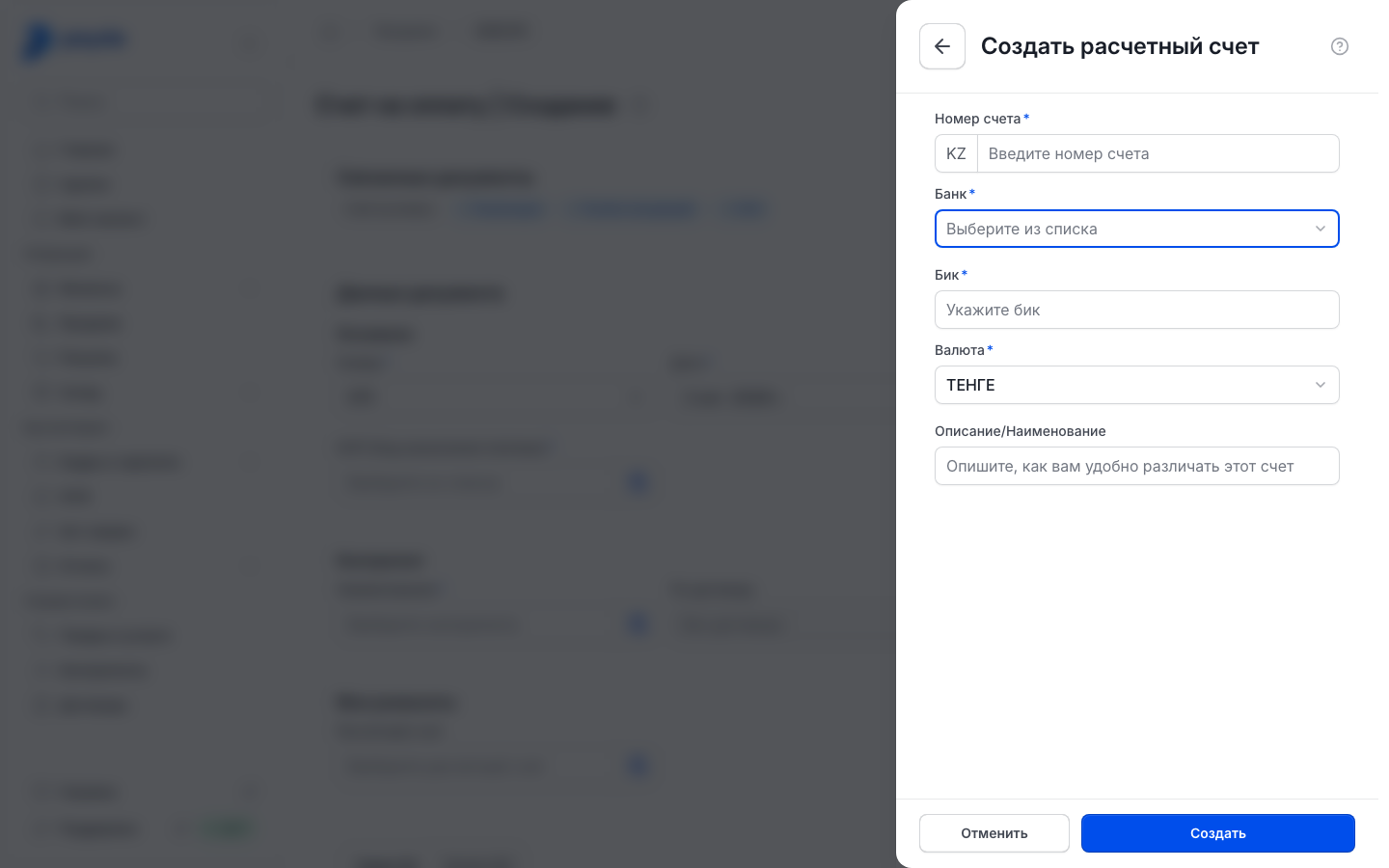
Fill in the fields:
- Номер счета (account number) — the 18 characters after KZ. The letters KZ are already shown before the field, so type the number without them;
- Банк (bank) — picked automatically from the digits of the number; if it is not, pick the bank from the list;
- Бик (BIC) — filled in once the bank is picked;
- Валюта (currency) — tenge by default;
- Описание/Наименование (description/name) — optional: a label to tell this account apart.
Press Создать (Create). The message «Банковский счет был успешно создан.» appears and the new account is selected in the list.
Press Выбрать (Select) — the account is set in the field.
Editing an account
- In the Расчетный счет panel press Редактировать (Edit).
- Press the account you need — the Редактировать расчетный счет (Edit bank account) form opens.
- Correct the fields and press Изменить (Change). The message «Банковский счет был успешно обновлен.» appears.
- Press Готово (Done) to go back to choosing an account.
An account cannot be deleted.
Counterparty account
A counterparty's account is added in their card, in the Главный банковский счет field — see Counterparties.
- It is better to add the account once the card is saved: open it with the arrow in the list and press the reference-book icon in Главный банковский счет. The panel shows the counterparty's own accounts, and a new account is added to them.
- In a new card you can press the reference-book icon and Создать новый, but then be sure to save the card with Создать: until then the account belongs to your organisation and stays with it if you close the form. Do not pick an account from the list — until the card is saved it shows your organisation's accounts.
- You can also add a counterparty's account from a payment: press the reference-book icon in their account field and Создать новый. The field becomes available once the counterparty is selected.
In an outgoing payment the counterparty's main account is filled into an empty Расчетный счет получателя field automatically. If no main account is marked but the counterparty has exactly one account, that one is used.
Employee account
The Банковские счета field in an employee card stays grey until the employee is saved.
- Save the new employee — Adding an employee.
- Open their card from the employee list.
- Press the reference-book icon on the right of Банковские счета and add an account as described in Adding an account.
On a phone and on the «Клиент банка» screen
On a phone your organisation's accounts are kept in the profile: Профиль (Profile) → the company card → the Банковские реквизиты (Bank details) tab → the pencil icon in the top right → Добавить счет (Add account). Fill in the account and press Сохранить (Save); details are in Company details on a phone.
On the Клиент банка (client-bank) screen (pro.payda.kz/bank/client) an account is added in the Добавить счет panel with the same fields. The panel opens in two ways:
- the organisation has no accounts yet — the screen shows «Расчетные счета не созданы» (no bank accounts created), press Создать расчетный счет;
- the uploaded statement has an account Payda does not know — the notice «Счет не зарегистрирован в системе.» (account not registered) appears, press Создать счет in it.
Fill in the fields and press Создать счет — the message «Счет успешно добавлен» appears. How to work with this screen — The «Клиент банка» screen.
How to check it worked
Open the account field again: the new account is in the Расчетный счет panel with its number, description and the bank's BIC, and in the field's drop-down as the bank name and number. After Выбрать the account is in the document field.
Common problems
| What you see | Why | What to do |
|---|---|---|
| «Номер счета должен содержать 20 символов» (account number must be 20 characters) | Fewer than 18 characters typed after KZ. This happens when you paste the number together with KZ: the field cuts off its end | Type the number without the letters KZ — 18 characters |
| «Бик обязателен для заполнения» (BIC is required), and under Банк — «обязательное поле» or «Выберите банк из списка» | The bank was not matched from the number and was not picked by hand | Pick the bank in Банк — Бик fills in automatically |
| «Выберите валюту» or «обязательное поле» under Валюта | No currency is selected | Pick a currency in Валюта |
| The account field is grey and the reference-book icon does not respond | In a payment the counterparty is not selected yet, or the employee card is not saved yet | Select the counterparty or save the employee first |
| «Нет счетов — откройте справочник» | Your organisation or the counterparty has no accounts yet | Add one — Adding an account |
What next
- Company details — fill in the rest of your company data.
- Payments and cash desk — make a payment with these accounts.
- Bank statement and client-bank — work with the statement for an account.