
Sign-up and sign-in
Why you need this
Your Payda account is tied to your phone number: you sign in with it and receive SMS codes on it. During registration Payda asks who you are — a director or an accountant. A director connects their own company; an accountant connects a client's company or requests access to it.
What you need
- A mobile phone number — SMS codes are sent there.
- To connect a company during registration — the EDS (electronic digital signature) of the company's director; a sole trader uses their own. You can sign with a key file on a computer running the NCALayer app, or in the eGov Mobile / eGov Business app.
- An accountant without the client's EDS needs the company's IIN or BIN to request access. The BIN (company tax ID) belongs to companies, the IIN (personal tax ID) to sole traders and individuals.
- Signing in needs neither an EDS nor NCALayer — only your phone number and password.
Step by step
Signing in
Open pro.payda.kz — the Вход в Payda (Sign in to Payda) page appears.
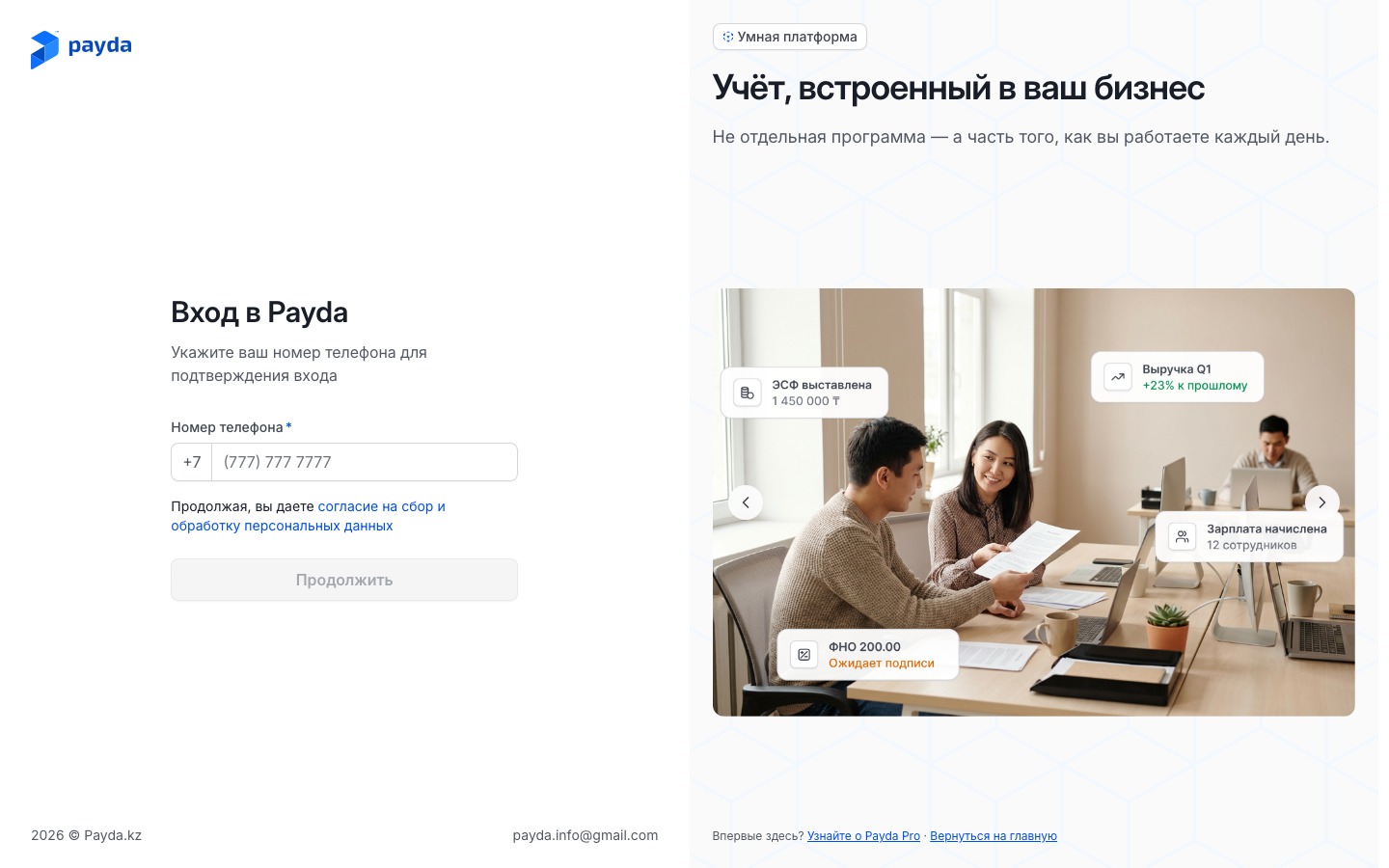
Enter your Номер телефона (phone number) and press Продолжить (Continue). The button becomes active once the number is complete.
Enter your Пароль (password) and press Войти (Sign in). Wrong number? Press Изменить номер входа (change the sign-in number).
If you have several companies and none is selected, the Аккаунты для входа (accounts to sign in with) window opens after you sign in. Choose a company or Физическое лицо (individual) and press Подтвердить (Confirm). In the mobile version a Сменить аккаунт (switch account) panel opens instead: tap the company you need.
The password field does not always appear. After Продолжить Payda may send an SMS and open the Введите код (enter the code) screen:
- a new number — after the code, director or accountant registration starts; if a director has already invited you, the invitation opens instead;
- an account without a password yet — after the code Payda asks you to set one, see First sign-in: set a password.
On the Введите код screen type the 4 digits from the SMS. The code is checked as soon as the last digit is in — or press Подтвердить. You can request a new code after 60 seconds with Отправить код повторно (resend the code).
Forgot your password? On the password step press Восстановить (recover) next to «Забыли пароль?» (forgot your password?), see Resetting a password.
First sign-in: set a password
Registration has no password step. When it is over, Payda shows the notice «Аккаунт создан» — «При следующем входе попросим задать пароль» (account created — we will ask you to set a password the next time you sign in).
- On the sign-in page enter your Номер телефона and press Продолжить.
- On the Введите код screen enter the code from the SMS and press Подтвердить.
- On the Пароль обеспечит безопасность аккаунта (a password keeps your account safe) screen fill in Пароль and Повторите пароль (repeat the password). You need at least 8 characters, an upper-case and a lower-case Latin letter, a digit and a special character: the list under the fields ticks off the rules you meet.
- Press Готово (Done). By doing so you accept the user agreement, the privacy policy and the public offer — the link to them is under the fields.
- Payda opens. From now on you sign in with your phone number and password.
Registering as a director
On the sign-in page enter a new number and press Продолжить. There is no separate registration button.
Enter the code from the SMS. The Здравствуйте 👋 (hello) screen opens — choose Я руководитель (I am the director).
On the Добавление компании (adding a company) screen choose how to sign with your EDS:
- eGov Mobile/Business — a QR code appears with the hint «Отсканируйте QR код приложением eGov Mobile» (scan the QR code with the eGov Mobile app): scan it and sign in the app;
- ЭЦП-файл (EDS file) — signing with a key file through NCALayer. The caption «Требует NCALayer.» (requires NCALayer) under this option is a hint, not an error.
On a phone, instead of the QR code there are eGov Mobile and eGov Business buttons: they open the app for signing. The ЭЦП-файл option is not available on a phone.
Not ready to connect the company? Press Пропустить (skip). Payda opens without a company; you can add it later — see Several companies.
On the Ваша организация (your organisation) screen check ИИН (IIN), Наименование (name), Налоговый режим (tax regime) and the Плательщик НДС (VAT payer) or Не плательщик НДС (not a VAT payer) badge. Payda takes the name, the regime and the VAT status from the KGD (State Revenue Committee).
Type the Адрес (address) — it is saved as both the legal and the actual address — and press Подтвердить.
Answer Кто будет вести учет? (who will keep the books?):
- Я сам (myself) — registration is complete;
- У меня есть бухгалтер (I have an accountant) — the Пригласить (invite) screen opens. Enter the accountant's Номер телефона and press Отправить приглашение (send the invitation) — «Приглашение отправлено» (invitation sent) appears. Not inviting now? Press Перейти в Payda (go to Payda).
The Я являюсь бухгалтером (I am an accountant) button next to «Вы ошиблись?» (made a mistake?) also takes you into Payda — it is for those who picked the role by mistake.
Payda opens with the «Аккаунт создан» notice. You will set a password the next time you sign in — see First sign-in: set a password.
Registering as an accountant
- Enter a new number, press Продолжить and enter the code from the SMS.
- On the Здравствуйте 👋 screen choose Я бухгалтер (I am an accountant) — the Подключение к компании (connecting to a company) screen opens.
- Choose a way:
- У меня есть ЭЦП ключ компании (I have the company's EDS key) — if the company is not in Payda yet. On the Загрузите ЭЦП клиента (upload the client's EDS) screen sign with the key of the client's director, the same way as in director registration. On the Ваша организация screen check the data, type the Адрес and press Подтвердить — the client's company is connected to your account;
- Запрос на добавление (request to be added) — on the Поиск организаций (search for organisations) screen enter the ИИН/БИН компании (company IIN/BIN) and press Продолжить. Only companies that already work in Payda can be found this way.
- If you chose the request: on the Запрос на присоединение (request to join) screen check ИИН/БИН and Наименование and press Отправить запрос (send the request). «Запрос успешно отправлен» (request sent) appears.
- Payda opens. The company you asked to join becomes available once its administrator confirms the request — see Accountant access.
You have been invited to a company
If a director has invited you as an accountant and your number is not yet registered in Payda, the Вас пригласили в Payda (you have been invited to Payda) screen opens after the SMS code.
- Check the invitation: the text «приглашает вас стать бухгалтером» (invites you to become the accountant) and the company card with its name and IIN/BIN.
- Press Принять приглашение (accept the invitation) — Payda opens.
Not ready to accept right away? Press Назад (back; on a phone — the arrow in the top left corner) and sign in to Payda. The account has no password yet: after the number an SMS arrives, see First sign-in: set a password. The invitation will wait in Настройки доступа (access settings), where you can accept or decline it — see Accountant access.
Resetting a password
- On the sign-in page enter your Номер телефона and press Продолжить.
- On the password step press Восстановить next to «Забыли пароль?». The code goes to the number you have already entered — no need to type it again.
- On the Введите код screen enter the code from the SMS and press Подтвердить.
- On the Новый пароль (new password) screen fill in Пароль and Повторите пароль. The list under the fields ticks off the rules you meet: at least 8 characters, an upper-case and a lower-case letter, digits, a special character.
- Press Сбросить пароль (reset the password) — the button becomes active once every rule is met.
- On the Пароль обновлён (password updated) screen press Войти в аккаунт (sign in to the account) and sign in with the new password.
If the account has no password yet, there is no password step: right after Продолжить an SMS arrives, see First sign-in: set a password.
How to check it worked
- Payda has opened.
- If no company is connected yet, the left menu has three items: Главная (home), Мои компании (my companies) and Мой чеклист (my checklist). Until the questionnaire is filled in, there is also a Маркет (market) block below with the Заполнить анкету (fill in the questionnaire) item.
- After a password reset you saw the Пароль обновлён screen and signed in with the new password.
Common problems
| What you see | Why | What to do |
|---|---|---|
| Продолжить cannot be pressed | The number is incomplete | Enter all 10 digits after +7 |
| The SMS code does not arrive | The carrier is delaying delivery | Wait: after 60 seconds Отправить код повторно becomes active |
| «Не удалось подключиться к NCALayer» (cannot connect to NCALayer) | The NCALayer app is not running for the ЭЦП-файл option | Start NCALayer and press ЭЦП-файл again — or sign with eGov Mobile / eGov Business |
| «Недостаточно прав» — «Для регистрации компании необходимо войти через ЭЦП с ролью руководителя» (not enough rights — registering a company requires the director's EDS) | An employee's or an accountant's key was chosen | Sign with the director's key; a sole trader signs with their own key |
| «Компания уже зарегистрирована» (the company is already registered) | Someone else has already connected the company to Payda | Press Запросить доступ (request access) in the message and send a request — see Accountant access |
| «Не удалось получить данные из КГД. Попробуйте снова или обратитесь в поддержку» (could not get the data from the KGD) | Payda did not receive the company data from the KGD | Sign again in a couple of minutes; if that does not help, contact support |
| «пожалуйста, зарегистрируйте компанию или проверьте корректность БИН» (register the company or check the BIN) | No company with this IIN/BIN is in Payda, or the number has a typo | Check the number. If it is correct, go Назад and choose У меня есть ЭЦП ключ компании. The Зарегистрировать (register) button in the message signs you out to the sign-in page |
| «Пароли должны совпадать» (passwords must match) | The password and its repeat differ | Retype the password in both fields |
| Сбросить пароль cannot be pressed | Not every rule under the fields is met, or the passwords differ | Check the password: Latin letters, a digit and a special character, and a matching repeat |
| «Не удалось получить данные для восстановления пароля.» (could not get the password recovery data) | The new password page was opened without the SMS code — for example, from a saved link | Start over: sign-in page → number → Продолжить → Восстановить |
| The «Сайт может работать некорректно на мобильных устройствах» (the site may not work properly on mobile devices) window | The browser window is narrower than 1000 pixels | Продолжить в Payda Web (continue in Payda Web) opens the mobile version, Продолжить с масштабированием (continue with scaling) keeps the web version |
| No invitation or request in Мои компании | That page lists only the companies you already belong to | Invitations and requests are in Настройки доступа — see Accountant access |
What next
- Home page — what Payda shows right after you sign in.
- Several companies — add a company and switch between companies.
- Interface map — what every menu item is for.