
My checklist
Why you need this
«Мой чеклист» (my checklist) gathers an accountant's tasks for the month across all companies in «Мои компании» (my companies). Payda creates some tasks itself from a template, and you add your own. Statuses, due dates and comments help you not miss a deadline for any client.
What you need
- At least one company in «Мои компании». Until you have one, the screen shows «Пока нет организаций с активными задачами» (no organizations with active tasks yet) and the Добавить организацию (add organization) button — see Add a company.
- The Мой чеклист item is in the left menu both in a company cabinet and in the «Физическое лицо» (individual) mode — see Several companies.
Step by step
Month overview
Open Мой чеклист in the left menu.
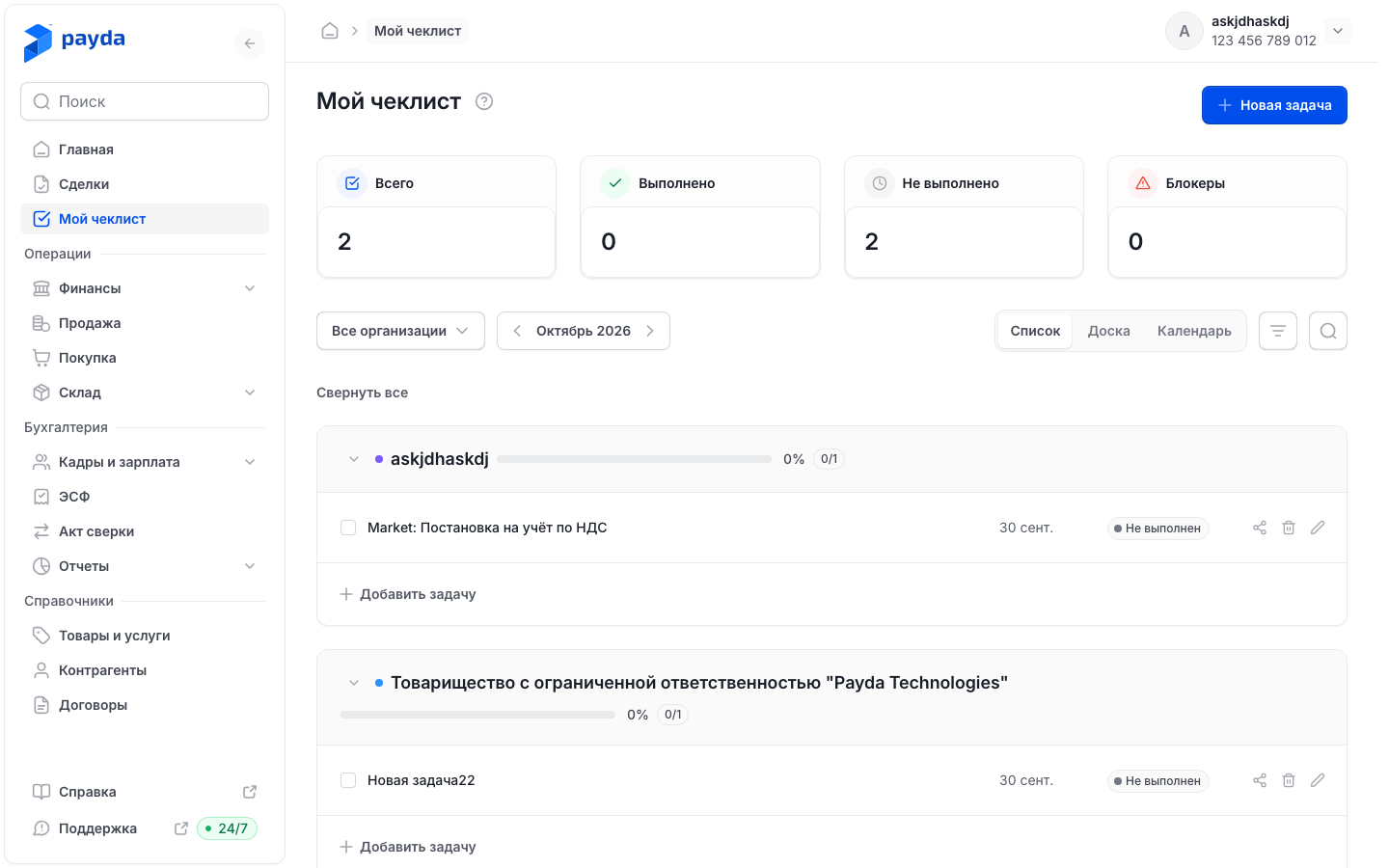
Look at the Всего (total), Выполнено (done), Не выполнено (not done) and Блокеры (blockers) tiles — they count the tasks currently on the screen.
On the bar under the tiles choose:
- the company — the Все организации (all organizations) button on the left;
- the month — with the arrows on both sides of the month name; press the name itself to pick a month and year;
- the view — Список (list), Доска (board) or Календарь (calendar).
In the Список view tasks are grouped by company. A company card header shows a progress bar and an «N/M» counter (done out of total) or «Завершено» (completed), plus a red «N блокеров» (N blockers) label if there are blockers. With several companies, Свернуть все (collapse all) / Развернуть все (expand all) appears above the cards.
Create a task
- Press Новая задача (new task) at the top right — the task is created in the company selected on the bar, or in the first company of the list if all are selected. Or create the task right where you need it:
- Добавить задачу (add task) at the bottom of a company card in the Список view;
- Добавить задачу at the bottom of a column in the Доска view — the task gets that column's status;
- «+» in a day cell in the Календарь view (it appears on hover) — the task gets that day as its due date.
- The task card opens with the «Новая задача» title selected. Type your title and press Enter. Esc cancels the title edit.
You can change the company, due date and status of a new task right away in its card.
Task card
The card opens when you press the task title, the pencil icon in a list row, or Открыть задачу (open task) in a board card's menu.
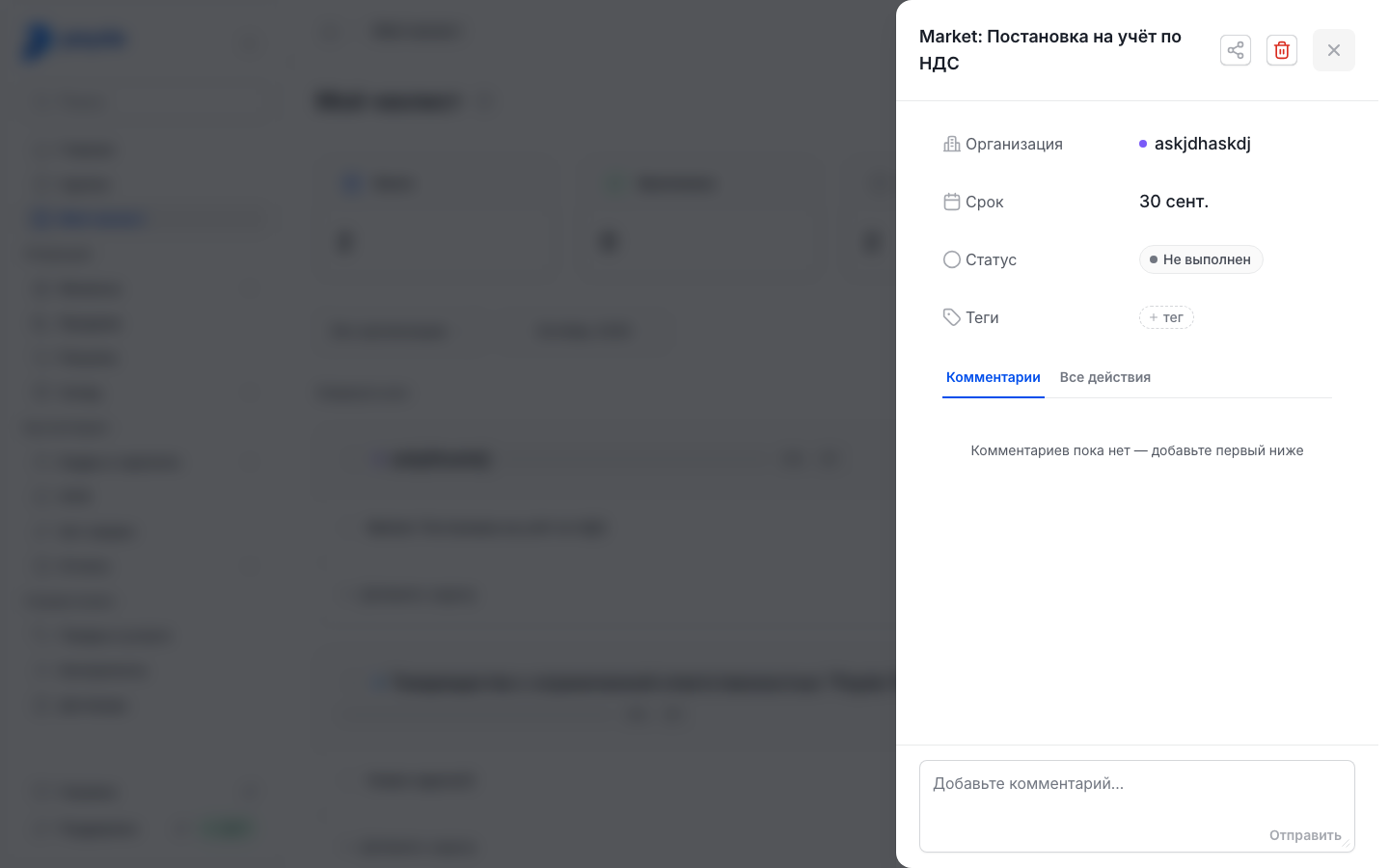
- Check and change the fields:
- Организация (organization) — press the company name to move the task to another company. This works only for your own tasks: tasks created by Payda keep their company;
- Срок (due date) — press the date («Без срока», no due date, if there is none) and pick a day. A due date cannot be removed, only replaced;
- Статус (status) — press the status label and pick a new one;
- Теги (tags) — press тег (tag) with the «+» icon, type a name and press Enter. Remove an extra tag with the cross on it.
- On the Комментарии (comments) tab write a message in the «Добавьте комментарий...» (add a comment) field and press Отправить (send).
- The Все действия (all activity) tab shows the task history: who created it, when the status changed and when comments were added.
Changes are saved immediately — the card has no «Сохранить» (save) button. Press the title to edit it.
Statuses
A task has three statuses: Не выполнен (not done), Блокер (blocker) and Выполнен (done). Use Блокер when a task is stuck: the Блокеры tile counts such tasks, and the company gets a red label.
In the Список view tick the box to the left of the title — the task becomes «Выполнен». Clearing the tick returns «Не выполнен». The status label on the right of the row opens a choice of the three statuses.
In the Доска view drag a card to the Не выполнено, Блокеры or Выполнено column. An empty column says «Пусто — перетащите сюда карточку» (empty — drag a card here).
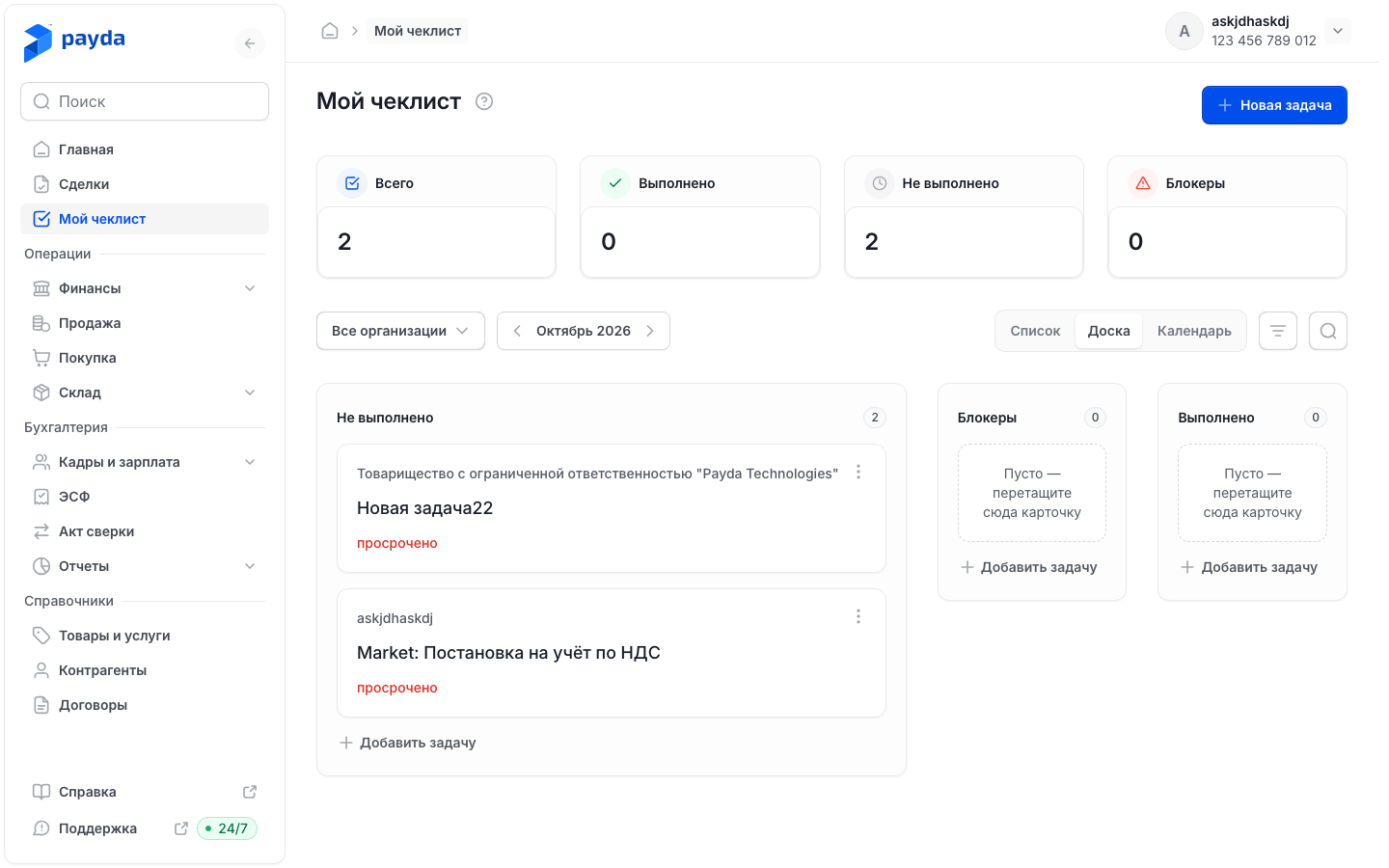
An unfinished task past its due date is marked on the board with a red «просрочено» (overdue) label.
Completed tasks move to the end of their company's list; the rest are ordered by due date.
Find a task
Press the filter icon on the right of the bar to open the Фильтр (filter) window:
- Организации (organizations) — one company or Все организации;
- Теги — press the tags you need: only tasks that have all the selected tags remain.
Готово (done) applies the filter, Сбросить всё (reset all) clears the selection. The number on the filter icon shows how many filters are on.
Press the magnifier icon to show the «Поиск по орг» (search by org) field. It searches by company name.
Unfinished tasks from previous months stay in the current month's list until you complete them.
Calendar
- In the Календарь view tasks sit on the days of their due dates; a task's colour is its company's colour. The arrows at the top switch months, Сегодня (today) returns to the current month.
- If a day has more than three tasks, press «+N ещё» (+N more) to open the list of all tasks of that day.
- The «Не закрыто в прошлых месяцах» (still open from previous months) strip above the grid collects unfinished tasks due before the days shown in the calendar. Press a task to open it.
Share and delete
- To share a task, press the share icon in a list row or in the task card, or Поделиться (share) in a board card's menu (the three-dot icon). Payda copies the link and shows «Ссылка на задачу скопирована» (task link copied). The link opens this task with the same month, view and filters.
- To delete a task, press the bin icon in a list row or in the task card, or Удалить (delete) in a board card's menu. In the «Удалить задачу?» (delete task?) window press Удалить. A deleted task cannot be restored; Отмена (cancel) keeps it.
How to check it worked
- The task is in the right board column or has the right status label in the list.
- The Всего, Выполнено, Не выполнено and Блокеры tiles were recalculated.
- The company in the list shows «N/M», or «Завершено» once all its tasks are done.
Common problems
| What you see | Why | What to do |
|---|---|---|
| «Не удалось сохранить изменения — проверьте подключение и попробуйте ещё раз» (couldn't save changes — check your connection and try again) | The change did not reach the server, and Payda restored the previous value | Check your internet connection and repeat the change |
| «Не удалось загрузить чеклист» (couldn't load the checklist) | No connection to the server | Press Повторить (try again) |
| «Не удалось загрузить комментарии и историю» (couldn't load comments and history) in the task card | A loading failure | Press Повторить under the message |
| The Новая задача button is inactive | You have no companies, a task is still being created, or the checklist did not load | Add a company, wait for the task to be created, or press Повторить |
| The task's company cannot be changed | Payda created the task from a template | Create your own task in the right company |
| The due date cannot be cleared | The Срок field has no clear option: the date can be changed but not removed | Pick another date |
| No «Ссылка на задачу скопирована» message after Поделиться | The browser did not allow copying the link | Open the task and copy the address from the browser's address bar — it already contains the task link |
| A task from a previous month shows up in this month | It is not done yet | Complete it or move its due date |
What next
- Several companies: switching and adding — the companies your checklist is built from.
- Home page — what the home page shows.