
Accountant access to a company
Why you need this
A director gives an accountant access to their company, and the accountant keeps the company's documents and books in Payda. Access appears in one of two ways: the director invites the accountant by phone number, or the accountant requests access and the director approves it.
What you need
- For the director — the Руководитель (Director) role in the company and the accountant's phone number. Nobody else can open the company's Настройки доступа (Access settings) screen: Payda shows «Доступ запрещён» — «У вас нет прав для доступа к этому разделу.» (Access denied — you have no rights to this section).
- For the accountant — a Payda account, and to request access, the client company's BIN (company tax ID) or IIN (personal tax ID, for sole traders and individuals).
Step by step
The director works inside their company. The accountant accepts invitations and sends requests in «Физическое лицо» (Individual) mode, which has its own Настройки доступа screen. How to switch modes — see Individual mode.
Invite an accountant
- Open the Пригласить (Invite) screen in one of these ways:
- the account card in the top right → Пригласить;
- the account card → Настройки доступа → Пригласить;
- the Пригласить button in the Настройки доступа block on the home page.
- Enter the accountant's number in Номер телефона (phone number) — the +7 code is already filled in.
- Press Отправить приглашение (Send invitation). The message «Приглашение отправлено» (Invitation sent) appears and the home page opens.
The invitation appears in Настройки доступа on the Отправленные запросы (Sent requests) tab with the status «Ожидает ответа» (Awaiting reply). The home page may show an Ожидание (Waiting) banner — «… еще не принял приглашение» (has not accepted the invitation yet) with the Отменить приглашение (Cancel invitation) and Посмотреть все (View all) buttons.
What the accountant sees:
- with no Payda account yet — after signing in with the SMS code the «Вас пригласили в Payda» (You have been invited to Payda) screen opens, see You have been invited to a company;
- with an existing account — the invitation arrives in their Настройки доступа on the Полученные запросы (Received requests) tab and, on the home page, in the Настройки доступа block on the Входящие (Incoming) tab.
Director's requests and access
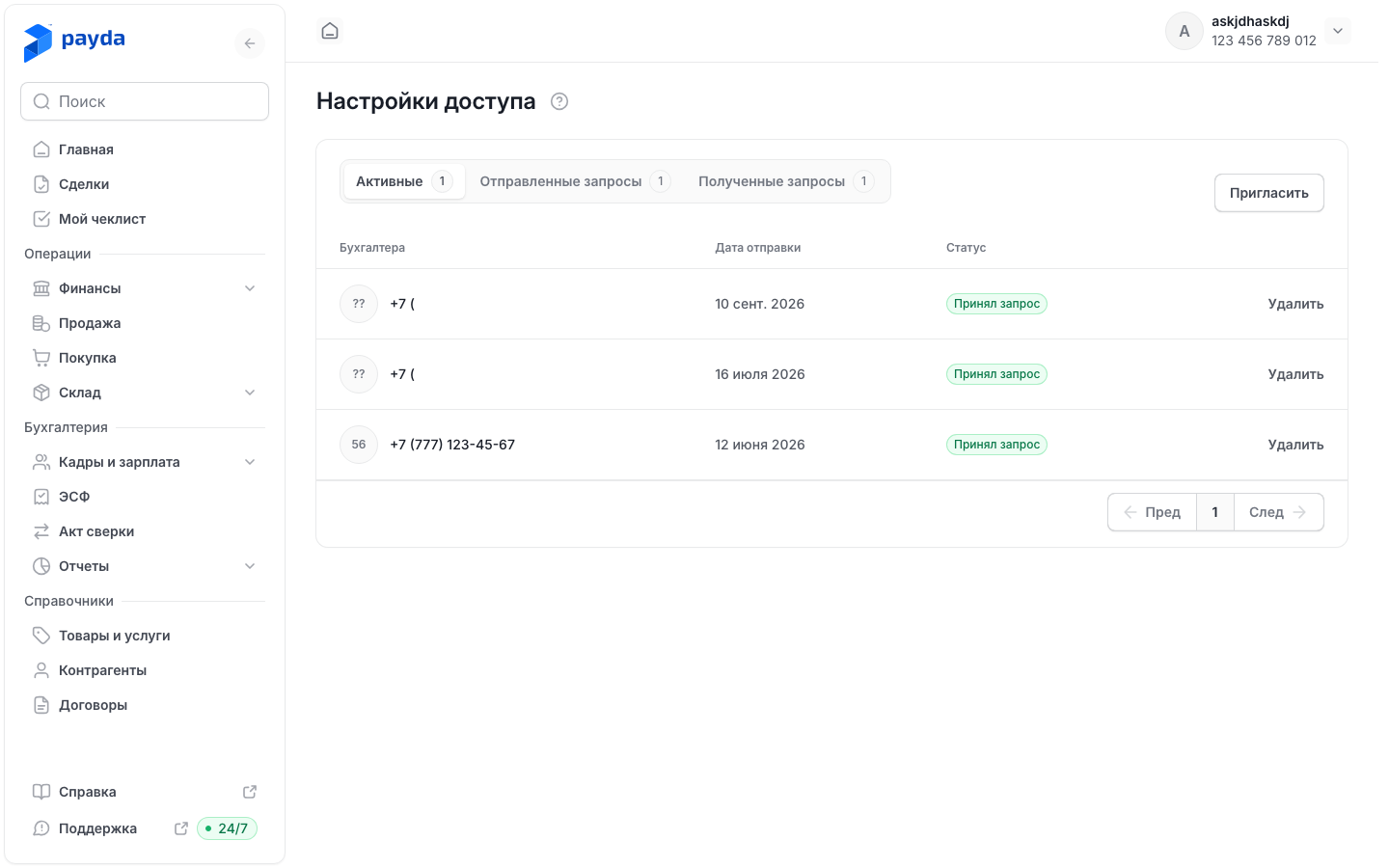
Click the account card in the top right and choose Настройки доступа. Or press Все запросы (All requests) in the Настройки доступа block on the home page.
Pick a tab — the number next to its name is the count of records:
- Активные (Active) — accountants who have access;
- Отправленные запросы — your invitations;
- Полученные запросы — accountants' requests for access to the company.
To approve a request, on the Полученные запросы tab press Принять (Accept) in its row, then Принять in the «Вы уверены, что хотите принять запрос?» (Accept the request?) window.
To decline, press Отказать (Decline), then Отклонить (Reject) in the «Вы уверены, что хотите отклонить запрос?» window. After you answer, the message «Статус успешно обновлен» (Status updated) appears.
To remove an accountant's access or withdraw an invitation, press Удалить (Delete) in the row, then Удалить in the «Вы уверены что хотите удалить пользователя?» (Delete the user?) window. The message «Пользователь успешно удален» (User deleted) appears.
The table has the columns Бухгалтера (accountants, shown by phone number), Дата отправки (date sent) and Статус (status). Accountants' requests are also visible on the home page — the Настройки доступа block, Входящие tab: there Принять and Отклонить work immediately, without a confirmation window. More about the block — see Access requests.
Accept an invitation
In the account card choose Физическое лицо.
Open the account card again and press Настройки доступа.
Open the Полученные запросы tab — it lists companies' invitations with the status «Ожидает ответа». The table has the columns Компании (companies), Дата отправки and Статус запроса (request status).

Press Принять in the company's row, then Принять in the «Принять приглашение?» (Accept the invitation?) window.
To decline, press Отказать, then Отклонить in the «Отклонить приглашение?» (Decline the invitation?) window.
You can do the same on the home page in «Физическое лицо» mode: the Настройки доступа block, Входящие tab. If the invitation was sent to a number not yet registered in Payda, the «Вас пригласили в Payda» screen opens after the SMS code — see You have been invited to a company.
An accepted company appears in the account card under Сменить аккаунт (Switch account). The Список компаний (Company list) button on this screen opens the Мои компании (My companies) page.
Request access to a company
- Press Запросить доступ (Request access) in the account card in «Физическое лицо» mode. The same button is on the accountant's Настройки доступа screen and on the Мои компании page; on the home page it is Отправить запрос (Send request) in the Настройки доступа block.
- At the Поиск организаций (Find organisations) step, enter the number in ИИН/БИН компании (company IIN/BIN) and press Продолжить (Continue).
- At the Запрос на присоединение (Join request) step, check the company's IIN/BIN and name and press Отправить запрос.
- The «Запрос отправлен» (Request sent) screen appears. Press Вернуться на главную (Back to home).
The request appears in Настройки доступа on the Отправленные запросы tab with the status «Ожидает ответа», and the home page may show a «Ждем подтверждения от руководителя…» (Waiting for the director's confirmation) banner. To withdraw the request, press Отменить запрос (Cancel request) in its row, then Удалить in the «Удалить запись?» (Delete the record?) window.
Leave a company
- On the accountant's Настройки доступа screen open the Активные tab.
- Press Отказаться от компании (Leave the company) in the company's row, then Отказаться (Leave) in the «Отказаться от компании?» window. To work with the company again you will need a new request.
Declined requests and invitations stay in the list. To remove such a record, press Удалить, then Удалить in the «Удалить запись?» window. After leaving or deleting, the message «Запрос успешно удалён» (Request deleted) appears.
Statuses
Both sides see an invitation or a request: the sender on the Отправленные запросы tab, the recipient on the Полученные запросы tab. An accepted record does not move: it stays on its tab and also appears on the Активные tab.
| What happened | Director sees | Accountant sees |
|---|---|---|
| The director invited the accountant | «Ожидает ответа», Отправленные запросы | «Ожидает ответа», Полученные запросы |
| The accountant accepted the invitation | «Принял запрос» (accepted), Отправленные запросы and Активные | «Приняли запрос» (accepted), Полученные запросы and Активные |
| The accountant declined the invitation | «Отказались от запроса» (declined), Отправленные запросы | «Отказались от запроса», Полученные запросы |
| The accountant requested access | «Ожидает ответа», Полученные запросы | «Ожидает ответа», Отправленные запросы |
| The director accepted the request | «Принял запрос», Полученные запросы and Активные | «Приняли запрос», Отправленные запросы and Активные |
| The director declined the request | «Отказали» (declined), Полученные запросы | «Отказались от запроса», Отправленные запросы |
The «Активен» (Active) status on the director's Активные tab means the accountant is connected to the company.
On a phone
- Open the Профиль (Profile) tab and tap Настройки доступа. A director sees this item in the company account, an accountant in their personal account.
- The Настройки доступа screen has the tabs Активные, Отправленные (sent) and Полученные (received). An empty tab says «Здесь пока ничего нет» (Nothing here yet).
- A director taps Пригласить: on the Пригласить бухгалтера (Invite an accountant) screen enter the number in Номер телефона and tap Отправить приглашение. After sending, Настройки доступа opens again.
- An accountant taps Запросить доступ — the next steps are the same as on a computer.
- On an incoming request or invitation card tap Принять or Отказать and confirm in the window. A pending record can be removed with Отменить (Cancel), the others with Удалить.
- An accountant leaves a company on the Активные tab: Отказаться от компаний (Leave the companies) → Отказаться.
How to check it worked
- The director sees the accountant on the Активные tab — with the status «Принял запрос» or «Активен».
- The accountant sees the company in the account card under Сменить аккаунт and on the Мои компании page.
Common problems
| What you see | Why | What to do |
|---|---|---|
| «Доступ запрещён» — «У вас нет прав для доступа к этому разделу.» | Only the director can open the company's Настройки доступа screen | Ask the director to invite you, or send a request — see Request access to a company |
| An invitation stays at «Ожидает ответа» for a long time | The accountant has not signed in to Payda yet or has not answered | Remind the accountant. If the number was wrong, delete the invitation (Удалить, or Отменить приглашение on the home page) and send a new one |
| «пожалуйста, зарегистрируйте компанию или проверьте корректность БИН» (please register the company or check the BIN) | There is no company with this number in Payda, or the number has a typo | Check the number. If the company is not in Payda yet, its director adds it first |
What next
- Several companies: switching and adding — switch between your clients' companies.
- Sign-up and sign-in — how an accountant signs in to Payda by invitation.
- Plans and payment — a plan for the company.