
Goods and services
Why you need this
The catalogue holds everything you sell and buy. Items are pulled into invoices, sales, receipts and ESF (electronic invoice) together with their price, unit of measure and VAT rate. A filled-in catalogue saves time on every document and keeps prices consistent.
What you need
- A list of what you sell, with prices and units of measure.
- A unit of measure in the reference book. The basic units are already there; add a missing one yourself — see Units of measure.
- The VAT rate for each item.
Step by step
In the left menu, in the Справочники (Reference books) block, open Товары и услуги (Goods and services) — the Номенклатура (Catalogue) side panel opens with the list of items.
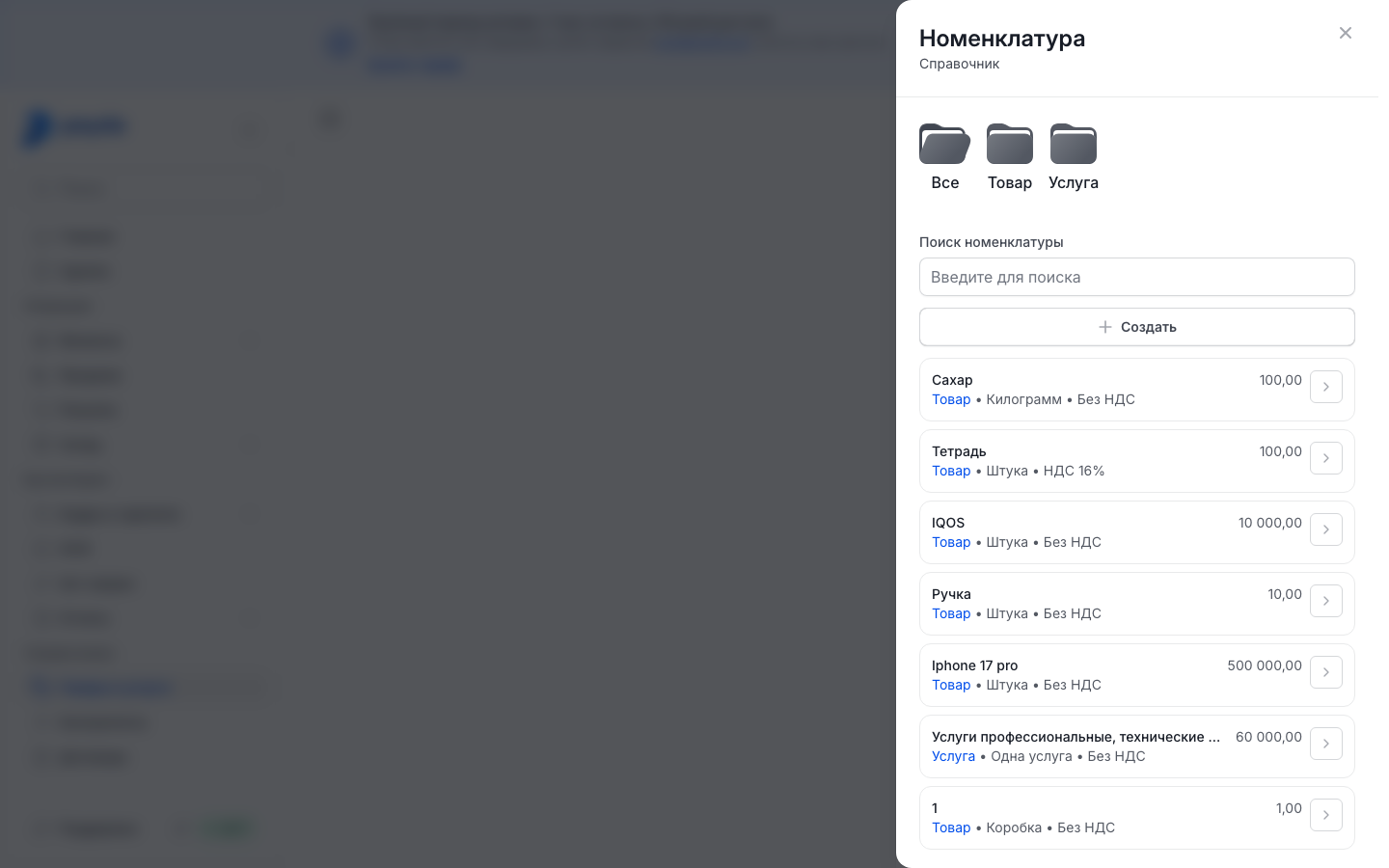
Press Создать (Create) — the Создать номенклатуру (Create item) form opens.
If you use groups, fill in Группа (Group) — see Groups.
Choose the Товар (Product) or Услуга (Service) tab. A product is tracked in the warehouse, a service is not.
Fill in the fields:
- Наименование (Name) — the name that goes into documents. Required.
- Цена (Price) — the item price. Required.
- Ставка НДС (VAT rate) — filled in automatically: the standard 16% rate for a VAT payer, Без НДС (No VAT) for everyone else. Required: check the rate and change it if needed.
- Валюта (Currency) — tenge by default. Required.
- Единица измерения (Unit of measure) — pick one from the list. Required.
- Артикул (Article number), Штрихкод (Barcode), Единица измерения ЭСФ and Код ТНВЭД — optional fields.
Press Создать — the message «Номенклатура успешно добавлена в справочник.» (item added to the reference book) appears and the item joins the list.
Payda treats a company as a VAT payer when the Дата регистрации НДС (VAT registration date) field is filled in its company details — see VAT.
Finding an item
- Start typing a name into Поиск номенклатуры (Search the catalogue) — the field hint reads «Введите для поиска». The list keeps only the matching items.
- Above the list are the folders Все (All), Товар, Услуга and your own groups. Press a folder and the list shows only its items. Все brings back the full list.
- An item row shows the name and price, and below them the type, unit and rate: «НДС 16%» or «Без НДС».
Editing an item
- Find the item and press the arrow on the right of its row — the Редактировать номенклатуру (Edit item) form opens.
- Correct the fields. If Ставка НДС is empty, pick a rate: it is not filled in automatically when you edit.
- Press Сохранить (Save) — the message «Номенклатура успешно обновлена в справочнике.» (item updated) appears.
Отменить (Cancel) goes back to the list without changes. An item cannot be deleted from the reference book.
Groups
A group is your own folder in the catalogue: for example, by product type or by supplier. There is no separate button for groups — a group is created from the item form.
- In the item form, open the Группа list and pick the first entry — Добавить (Add).
- The Создать группу номенклатуры (Create item group) form opens. Fill in Наименование and, if you like, Код группы (Group code).
- Press Создать — the message «Группа номенклатуры создана» (group created) appears. You return to the item, and the new group is already in the Группа field.
- Save the item.
The group appears as a folder above the list. A group cannot be renamed or deleted.
Items in a document
Items from the reference book go into the line-item table of an invoice, a sale, a receipt and a power of attorney. There are three ways to add them.
Several items at once:
- Above the table press Добавить из справочника (Add from the reference book) — the Номенклатура panel opens with checkboxes next to the items.
- Tick the items you need: you can use the folders and the search. Items that are already in the document are ticked in advance. Untick one and its row leaves the document.
- Press Выбрать N (Select N), where N is the number of ticked items. New rows get a quantity of 1 and the price from the reference book.
If the item you need is missing, press Создать in the panel and add it. The new item is ticked right away.
Typing a name straight into a row:
- Above the table press Добавить — an empty row appears.
- In the Номенклатура cell start typing a name and pick the item from the list.
- If there is no such item, pick the Создать «…» (Create «…») entry with your name. The name stays in the row, and the price and VAT rate from that row go into the new item.
- To add the item to the reference book right away, press the floppy-disk icon on the right of the cell — its tooltip reads Сохранить в справочник (Save to the reference book).
- If you skip that, saving the document opens the «Позиции ещё не в справочнике» (Items not in the reference book yet) window with a list of such names. Press Сохранить все (Save all) — the items go into the reference book and the document is saved.
Payda picks the unit of measure for such an item itself: a piece for a product and a service for a service, if that unit exists in the reference book. You can check it later in the item card.
One item from the reference book: in the Номенклатура cell press the reference-book icon (a sheet with a magnifying glass), tick the item and press Выбрать (Select). An item that is already in the document cannot be picked twice — the message «Эта номенклатура уже добавлена в документ» (this item is already in the document) appears.
Units of measure
A unit of measure shows what an item is counted in: pieces, kilograms, services. The reference book has no menu entry of its own — it opens from the Единица измерения field in the item form.
- In the item form open the Единица измерения list and pick the first entry — Справочник (Reference book). The Единицы измерения (Units of measure) panel opens with the caption «Выберите единицу измерения из справочника.».
- Find the unit with the Поиск (Search) field: each row shows the name with the code below it.
- Tick the unit and press Выбрать.
If the unit you need is missing:
- Press Создать новый (Create new) — the Создать единицу измерения (Create unit) form opens. If the reference book is empty, this form opens straight away.
- Fill in all four fields — they are required even though they have no asterisks:
- Наименование — the full name of the unit;
- Код (Code);
- Код в портале (Portal code) — the unit code for ESF;
- Краткое наименование (Short name) — a short label; the unit is shown with it in the ESF line-item table.
- Press Создать — the message «Единица измерения успешно создана в справочнике.» (unit created) appears. The new unit is ticked in the list — press Выбрать.
To correct a unit, press Редактировать (Edit), then press the unit. In the Редактировать единицу измерения (Edit unit) form correct the fields and press Изменить (Change). Готово (Done) leaves edit mode. A unit cannot be deleted.
On a phone the list has no Справочник entry. If the unit you need is not found, pick Добавить under «Нет данных» (No data) — the same Создать единицу измерения form opens.
The catalogue on a phone
In the mobile app the catalogue opens in two ways, in a company account:
- on the home screen — the Товары и услуги tile;
- the Каталог (Catalogue) tab at the bottom of the screen → the Разделы (Sections) block → Склад (Warehouse).
The Каталог screen opens with the list of items. Find an item with the Поиск по товарам и услугам (Search goods and services) field. If there are no items yet, the screen shows «Создайте товары и услуги» (Create goods and services).
To add an item:
- Press Добавить at the bottom of the screen — the Добавить новый товар и услугу (Add a new product or service) window opens.
- Choose the Товар or Услуга tab.
- Fill in Номенклатура (the name), Единица измерения, Цена за единицу (Price per unit, in tenge) and Ставка НДС. All fields are required; the rate is filled in automatically, as on a computer.
- Press Добавить.
To edit an item:
- Press the pencil icon in the screen header — Управление каталогом (Manage catalogue) opens.
- Under the item press Изменить (Change) — Редактировать номенклатуру opens.
- Correct the fields and press Сохранить.
- Press Готово at the bottom of the screen to leave edit mode.
The group, article number, barcode and the remaining item fields are set on a computer.
How to check it worked
The item is in the list of the Номенклатура panel, with its price, type, unit of measure and VAT rate. In a document it is available under Добавить из справочника, and when you pick it, its price and rate fill the row. On a phone the item is visible on the Каталог screen.
Common problems
| What you see | Why | What to do |
|---|---|---|
| «Номенклатура не найдена» and «Добавьте первую номенклатуру, чтобы выбрать ее в списке» (no items found) | The catalogue is empty, the search found nothing or another folder is open | Clear Поиск номенклатуры, pick the Все folder or press Создать номенклатуру |
| Создать does nothing and the browser asks you to fill in a field | A field with an asterisk is empty: Наименование, Цена or Единица измерения | Fill in the field and press Создать again |
| «Произошла ошибка при добавлении номенклатуры. Пожалуйста, попробуйте еще раз.» (error adding the item) | The item was not saved. The same text also appears when editing | Check the fields and save again. If it still fails, contact support |
| «Не заполнены справочники валют или единиц измерения — заведите единицу измерения и повторите.» (currency or unit reference book is empty) | The item is created from a document row, and the reference book has no unit of measure at all | Add a unit — see Units of measure — and save again |
| «Наименование обязательно», «Код обязателен», «Код в портале обязателен» or «Краткое наименование обязательно» (field required) | A field in the unit form is empty: all four are required | Fill in the field and press Создать |
| «Не удалось сохранить единицу измерения» (could not save the unit) or another error text | The unit was not saved | Check the fields and press Создать again |
| «Название номенклатуры обязательно», «Единица измерения обязательна», «Цена обязательна» or «Ставка НДС обязательна» on a phone | The field is empty | Fill in the field and press Добавить |
| «Эта номенклатура уже добавлена в документ» | The item is already in the table | Change the quantity in the existing row |
| The «Позиции ещё не в справочнике» window when saving a document | A name was typed straight into a table row | Press Сохранить все |
| The «Товара не хватает на складе» (not enough stock) window when saving a sale | The warehouse holds less than the document needs. This is a warning, not a block | Всё равно создать (Create anyway) — the balance goes negative. Сменить склад (Change warehouse) — pick another warehouse. To have stock, post the goods in — see Starting stock control |
| Wrong VAT amount in a document | The item has the wrong rate | Fix the rate in the item card — see Editing an item — and in the document row |
What next
- Invoice, sale, waybill — sell the items you added.
- Movements and stock — put goods under stock control.
- Documents on a phone — add catalogue items to a document from a phone.