
Counterparties
Why you need this
A counterparty is a customer or a supplier you work with. Without one you cannot issue an invoice, record a sale or issue an ESF (electronic invoice): every document is made out to somebody. Add a counterparty once and it will be offered in documents from then on.
What you need
- The counterparty's IIN or BIN. BIN (company tax ID) is for companies, IIN (personal tax ID) is for sole traders and individuals.
- For bank transfers — the counterparty's bank account number.
Step by step
Open Контрагенты (Counterparties) in the left menu — a side panel with the list appears.
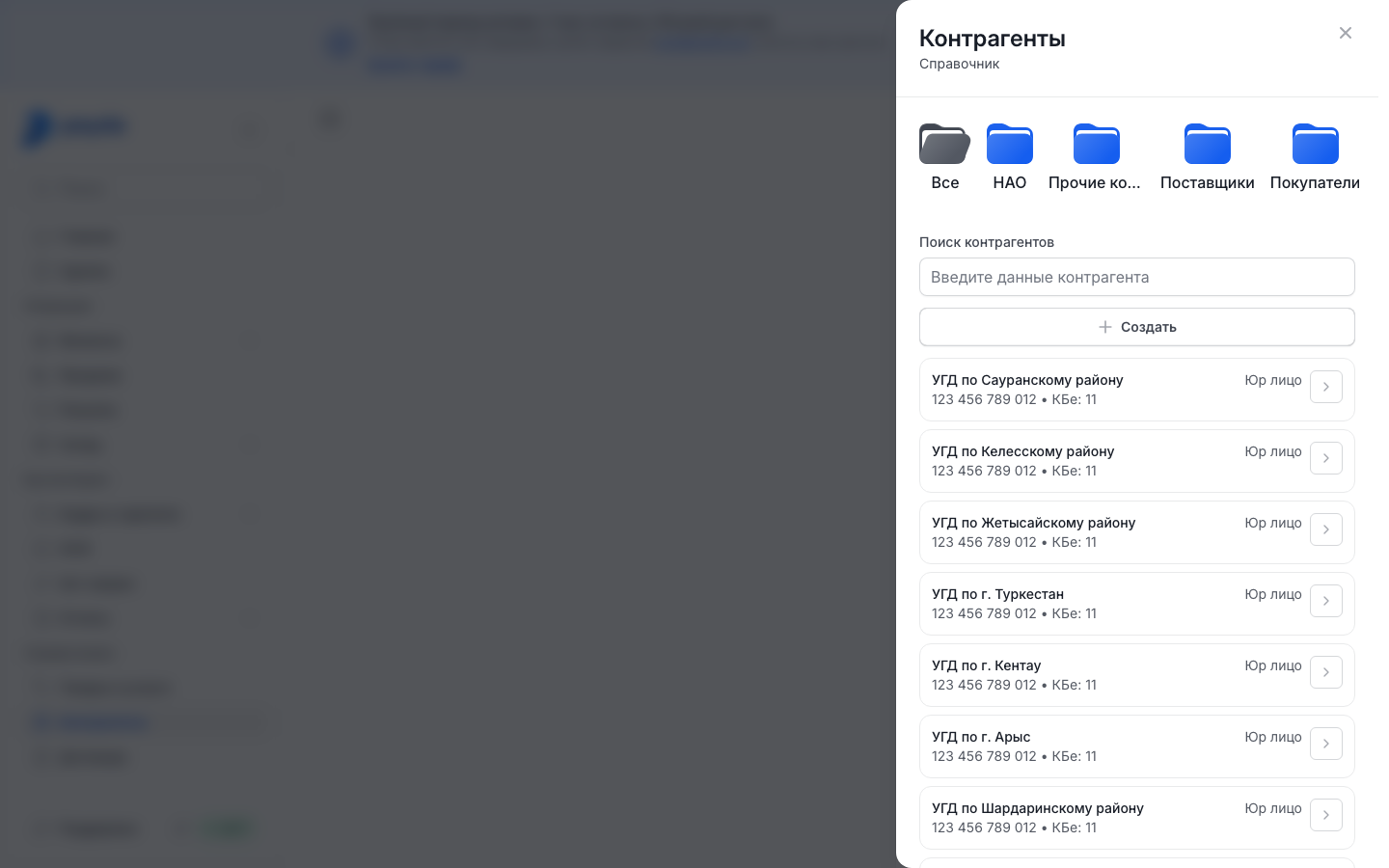
Press Создать (Create) — the Создать контрагента (Create counterparty) form opens. If the list is empty, press Создать контрагента under «Контрагенты не найдены».
Pick a group in Группа (Group) if you use groups. How to create one — see Groups.
In the Основные данные (Main details) block pick a tab: Физ. Лицо (individual, open by default), ИП (sole trader), Юр. Лицо (legal entity) or ГПХ — a contractor under a civil-law contract.
Fill in ФИО (full name, for Физ. Лицо) or Наименование (name, for the others). For Юр. Лицо pick ТОО, АО or Другое (LLP, JSC or other) on the left of the field; for ИП the «ИП » prefix is added automatically.
Enter 12 digits in ИИН or БИН (for Юр. Лицо). On the ИП and Юр. Лицо tabs the form fills itself in from the number — see Filling in by IIN/BIN. If needed, fill in Адрес (address).
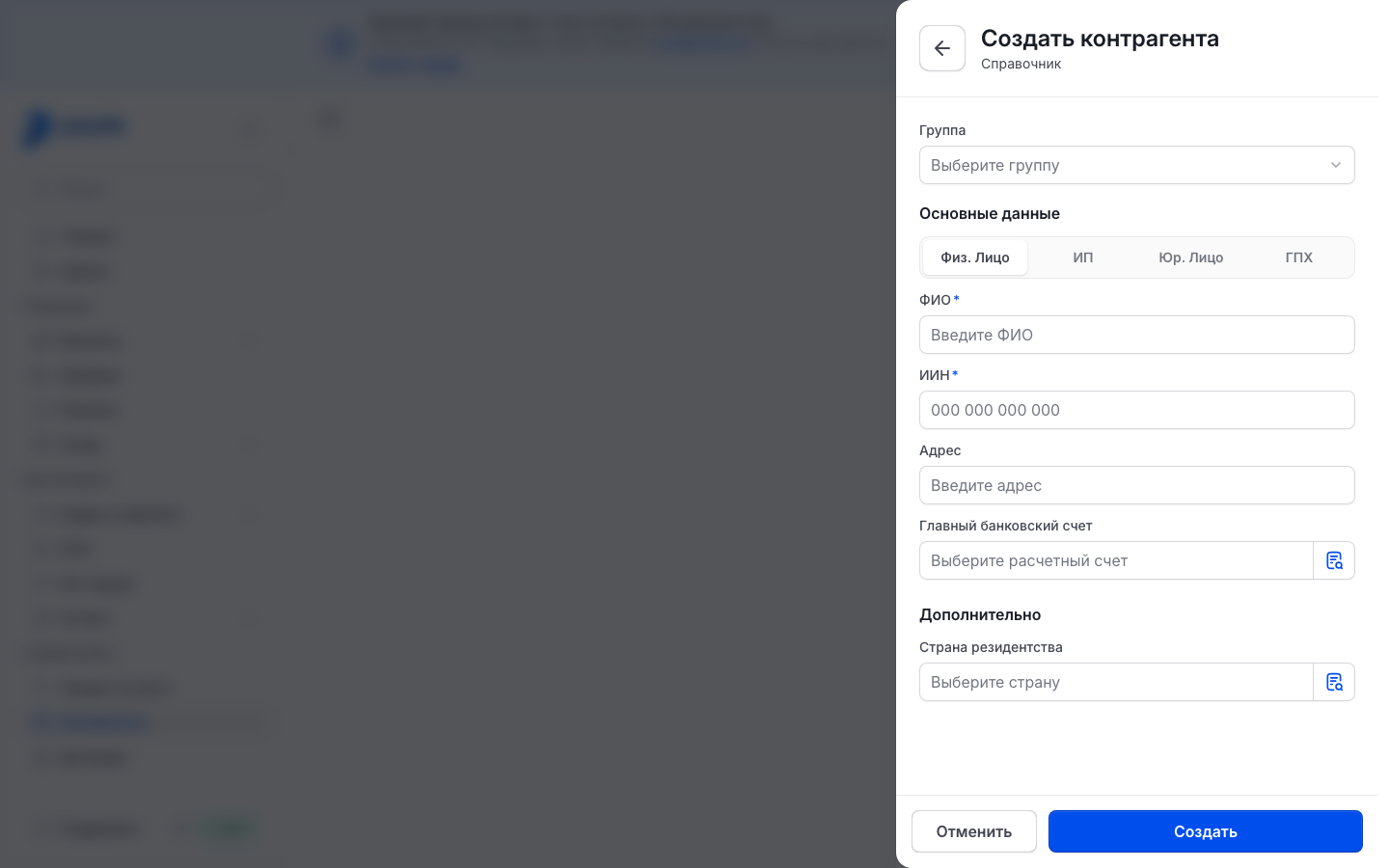
It is better to add the counterparty's account after the card is saved and to skip Главный банковский счет (main bank account) for now — see Counterparty account. If you add it right away, press the reference-book icon in the field and Создать новый (Create new) rather than picking an account from the list: the list holds your organisation's accounts, and the new account belongs to your organisation until you press Создать at the bottom of the card.
For Юр. Лицо fill in КБe — the two-digit beneficiary code. For ИП it is set automatically: 19.
In the Дополнительно (Additional) block, if needed, set:
- Страна резидентства (country of residence) — how to pick it is described in Country of residence;
- Код органа гос доходов (КОГД) (tax office code) — available for Юр. Лицо and ИП;
- Состоит на учёте по НДС (VAT registered) — for everyone except Физ. Лицо. If you pick Да (yes), fill in Серия, Номер and Дата выдачи (series, number and issue date) of the VAT registration certificate.
Press Создать. The message «Контрагент был успешно добавлен.» appears and the card shows up in the list.
Filling in by IIN/BIN
On the ИП and Юр. Лицо tabs the form fills itself in as soon as all 12 digits are entered in ИИН or БИН. Payda looks the organisation up in the KGD (State Revenue Committee) database and among organisations that work in Payda themselves. Under the number you see «Looking up the organization in the tax registry…», and then where the data came from.
- From KGD: Наименование together with the legal form, Состоит на учёте по НДС (VAT registered) with the registration date in Дата выдачи, and Страна резидентства set to «Казахстан» if the organisation is a resident. For Юр. Лицо the КБe is set as well.
- If the organisation works in Payda, its profile adds Адрес, and the Серия and Номер of the VAT certificate.
- If the number belongs to an organisation of another type — say, an LLP's BIN entered on the ИП tab — the tab switches to Юр. Лицо by itself.
- Fields you filled in before entering the number stay as they are. Enter another number and the previous organisation's data is replaced with the new one's.
- Fill in Код органа гос доходов (КОГД) and Главный банковский счет yourself: the KGD database does not have them.
Check the filled-in data before pressing Создать. On the Физ. Лицо and ГПХ tabs the form does not look the number up.
Finding a counterparty
Type a name, IIN or BIN into Поиск контрагентов (Search counterparties) — the field hint reads «Введите данные контрагента». The list filters as you type. Each row shows the name, the type («Юр лицо», «ИП», «Физ лицо» or «ГПХ»), the IIN or BIN and the КБe.
The folders above the list filter it by group: Все (All) shows everyone, a group folder shows only that group's cards.
Editing a card
- Find the counterparty and press the arrow on the right of its row — Редактировать контрагента (Edit counterparty) opens.
- Correct the fields and press Сохранить (Save). The message «Контрагент был успешно обновлен.» appears.
A counterparty cannot be deleted.
Groups
Groups split counterparties into, say, customers and suppliers. There is no separate button for groups in the list: a group is created from a counterparty card.
- In the counterparty card open the Группа field and pick Добавить (Add) — the Создать группу контрагентов (Create counterparty group) form opens.
- Fill in Наименование and, if needed, Код группы (group code), then press Создать. The message «Группа контрагентов создана» appears and the group is set in Группа.
- Press Создать or Сохранить in the counterparty card.
You do not move cards into a group: the group is set in the card's own Группа field, and the folders above the list only filter by it. Open a group folder before pressing Создать and the group is filled into the new card automatically. A group cannot be edited or deleted.
Counterparty in a document
In an invoice, a sale, a receipt and a power of attorney you pick the counterparty in the Контрагент (Counterparty) block, in the Наименование field with the hint «Выберите контрагента».
- Start typing a name or IIN/BIN — matches from the reference book appear in the list under the field.
- Or press the reference-book icon on the right of the field — the Контрагенты panel opens. Select the counterparty and press Выбрать (Select).
- Not there? Pick Добавить in the field's list: Создать контрагента opens with what you typed already filled in (digits go to ИИН or БИН, text to the name). If you typed a BIN, the form opens on the Юр. Лицо tab and fills itself in from it. After Создать the counterparty is set in the document, and Выбрать closes the panel.
If the counterparty is not in the reference book, type the full IIN/BIN — 12 digits. Payda looks the organisation up in the KGD database and shows it in the list under the field.
Pick the row it found — the counterparty card is created automatically and set in the field. It has no address: open the card in the reference book, check the type and add the address.
Line items for the same document come from the Goods and services reference book.
How to check it worked
Open Контрагенты and find the new card with Поиск контрагентов. Then start creating an invoice: in the Контрагент block the counterparty should be found in Наименование by name or IIN/BIN. If it is not there, the card was not saved.
Common problems
| What you see | Why | What to do |
|---|---|---|
| «ИИН должен состоять из 12 цифр» (IIN must be 12 digits) | Fewer than 12 digits entered. The message is the same for ИИН and БИН | Check the number and enter all 12 digits |
| «Обязательное поле» (required field) | A field marked with an asterisk is empty | Fill in the highlighted field |
| «Organization not found — fill in the details manually» under ИИН or БИН | The number is neither in the KGD database nor among Payda organisations | Check the digits. If the number is right, fill in the card yourself |
| «Организация не найдена в базе данных КГД РК» (organisation not found in the KGD database) | This IIN/BIN is neither in the reference book nor in the KGD database | Check the digits. If the number is right, pick Добавить and fill in the card yourself |
| «Организация не найдена в справочнике при поиске по общей базе» with the note «используйте полный ИИН/БИН организации для поиска в КГД» | Nothing matched part of a name or number, and the KGD database is searched by the full number only | Type the full IIN/BIN or pick Добавить |
| «Контрагенты не найдены» (no counterparties found) | The reference book or the open folder has no cards, or the search found nothing | Clear the search, open the Все folder or press Создать контрагента |
| The counterparty is missing in a document | The card was created in another organisation | Check which organisation is selected: its name is in the top right |
What next
- Invoice, sale, waybill — issue your first invoice.
- Contracts — add a contract with the counterparty.
- Checking a counterparty by IIN/BIN — check a company from your phone before you start working with it.