
Several companies: switching and adding
Why you need this
One Payda account can run several companies: your own or, if you are an accountant, your clients'. You switch between them in a couple of clicks, and the «Мои компании» (My companies) page shows each company's plan and when it ends.
What you need
- To add a company — its director's EDS (electronic digital signature): a key file and the NCALayer program on a computer, or the eGov Mobile or eGov Business app.
- To work with a client's company — access granted by its director, see Accountant access to a company.
Step by step
Switch to a company
Click the account card in the top right — it shows the current company name.
In the Сменить аккаунт (Switch account) block, which lists at most three companies, choose Физическое лицо (Individual) or a company. Under the company name you see its BIN (company tax ID) or IIN (personal tax ID, for sole traders and individuals) and your role: «Руководитель» (Director) or «Бухгалтер» (Accountant).
If the company you need is not listed, press Все (All). In the Аккаунты для входа (Accounts to sign in) window find it with Поиск... (Search), select it and press Подтвердить (Confirm).
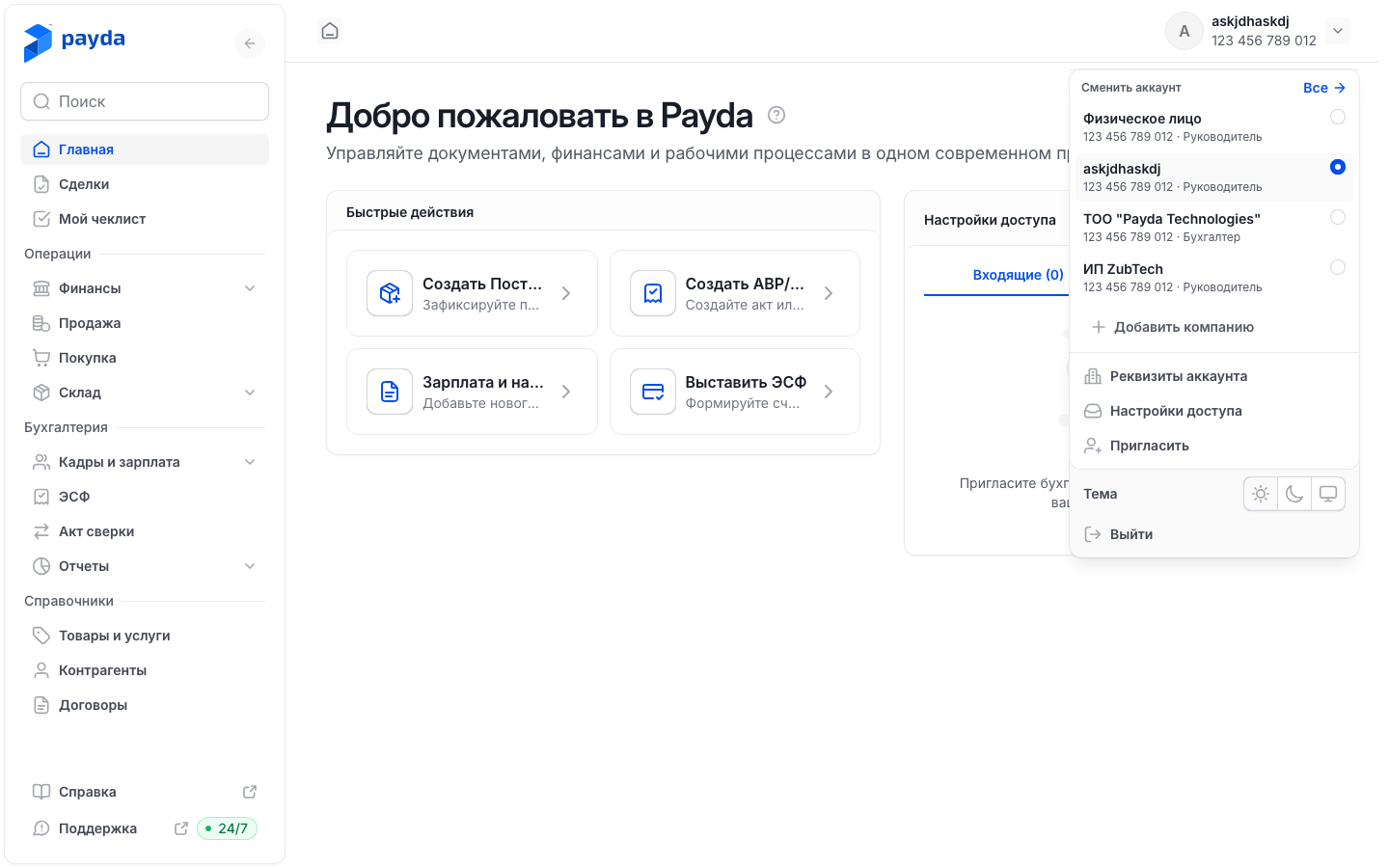
After switching, the home page of the selected company opens. In the Аккаунты для входа window each company shows the plan name followed by its term: «осталось N дн.» (N days left), «последний день» (last day) or «срок истек» (expired). A company with no plan is marked «Без тарифа» (no plan). If you have several companies and none is selected, this window opens by itself right after you sign in.
In «Физическое лицо» mode you can also switch from the home page: click the company card in the Мои компании block — see Personal account.
Individual mode
«Физическое лицо» is your personal account outside any company. There an accountant accepts invitations, requests access to clients' companies and sees all of them on the Мои компании page. The account card and menu items depend on the mode:
| Where | In a company | In «Физическое лицо» mode |
|---|---|---|
| Account card | Реквизиты аккаунта (Account details); for a director also Настройки доступа (Access settings) and Пригласить (Invite) | Настройки пользователя (User settings), Настройки доступа, Запросить доступ (Request access) |
| Account card, in both modes | Добавить компанию (Add company), Тема (Theme), Выйти (Sign out) | Добавить компанию, Тема, Выйти |
| Left menu | The company's accounting sections | Главная (Home), Мои компании, Мой чеклист (My checklist) |
Тема has three icons: light, dark and system theme.
Add a company
- Press Добавить компанию in the account card or in the Мои компании block on the home page of your personal account.
- At the Добавление компании (Adding a company) step choose how to sign:
- eGov Mobile/Business — a QR code appears; scan it with the eGov Mobile app;
- ЭЦП-файл (EDS file) — choose the key file; NCALayer is required («Требует NCALayer.»).
- Sign with the director's EDS. While Payda checks the data against the registers, the message «Проверяем компанию» (Checking the company) is shown.
- At the Подтверждение (Confirmation) step check the Ваша организация (Your organisation) card: ИИН (IIN), Наименование (name), Налоговый режим (tax regime) and the «Плательщик НДС» (VAT payer) or «Не плательщик НДС» (not a VAT payer) mark.
- Enter the Адрес (address) — it becomes both the legal and the actual address of the company. You can correct it later in the company details. Press Подтвердить.
- At the Ведение учета (Bookkeeping) step answer Кто будет вести учет? (Who will keep the books?):
- Я сам (Myself) — the message «Компания успешно добавлена» (Company added) appears and the home page opens;
- У меня есть бухгалтер (I have an accountant) — the Пригласить screen opens, see Invite an accountant.
Payda switches you to the new company right away, and you are its director. No role is chosen in these steps.
The «Мои компании» page
Open the page: the Мои компании item in the left menu of your personal account, Посмотреть все (View all) in the Мои компании block on the home page, or Список компаний (Company list) on the accountant's Настройки доступа screen. In company mode the menu has no such item — open pro.payda.kz/manage-company.
Check the summary: Всего компаний (total companies), Активные планы (active plans; the line below shows how many companies have no plan) and Срок действия истекает (expiring) — plans ending within 7 days, plus trial periods.
Find a company with Поиск компании (Search company) — by name, BIN or IIN.
Tick companies and press Купить тариф для выбранных (Buy a plan for the selected ones) — see Buy a plan for several companies. Очистить (Clear) removes the ticks; with nothing ticked the Купить тариф (Buy a plan) button is available.
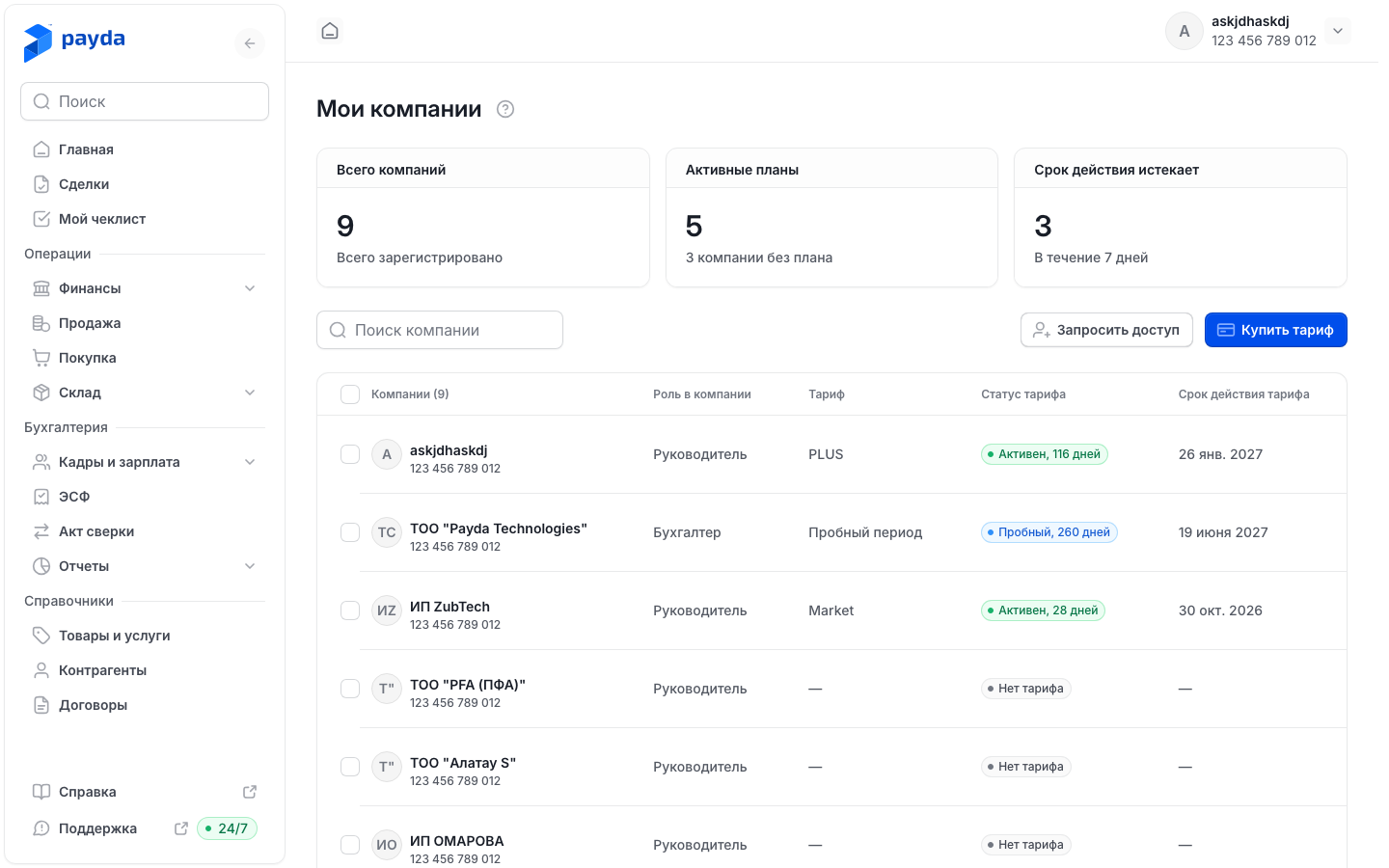
The table has the columns Компании (N) (companies), Роль в компании (role in the company), Тариф (plan), Статус тарифа (plan status) and Срок действия тарифа (plan valid until). You cannot switch to a company from this page — use the account card. The Запросить доступ button sends a request to a client's company, see Request access to a company.
| Plan status | What it means |
|---|---|
| «Нет тарифа» | No plan purchased |
| «Пробный, N дней» | A trial period is running |
| «Пробный, последний день» | The trial period ends today |
| «Пробный истёк» | The trial period has ended |
| «Активен, N дней» | The plan is paid, more than 7 days left |
| «Осталось N дней» | 7 days or fewer left |
| «Последний день» | The plan ends today |
| «Истёк» | The plan has expired |
| «Срок уточняется» | The plan end date could not be determined |
On a phone
- Open the Управление компаниями (Company management) screen: in your personal account — Профиль (Profile) → Мои компании, or the Управление (Manage) link above the Компаний (N) list on the home screen.
- At the top you see Всего (total), Активные (active, with the number of companies without a plan) and Истекает (expiring, «через 7 дней» — within 7 days). Below are Поиск компании and the Стать бухгалтером (Become an accountant) button: it opens a request for access to a client's company.
- Tick companies and tap Купить тариф (N) at the bottom of the screen. The arrow on the right of a company card also leads to buying a plan for that company — it does not switch to it.
- To switch, tap the account name on the right of the header. In the Сменить аккаунт sheet choose a company or Физическое лицо. Добавить аккаунт (Add account) opens adding a company.
On the home screen of your personal account you can simply tap a company card in the Компаний (N) list. When you add a company from a phone, instead of the QR code and key file you get the eGov Mobile (for sole traders) and eGov Business (for companies and sole traders) buttons.
How to check it worked
- The selected company's name is shown in the account card in the top right, and on a phone in the header.
- The new company is on the Мои компании page.
Common problems
| What you see | Why | What to do |
|---|---|---|
| «Компания уже добавлена в ваш аккаунт» (the company is already in your account) | You already work in this company | Switch to it in the account card |
| «Компания уже зарегистрирована» (the company is already registered) | Someone else has already added the company to Payda | Press Запросить доступ in the message and send a request to the director — see Request access to a company |
| «Недостаточно прав» (insufficient rights) | The EDS used has no director role | Sign with the company director's EDS |
| «Не удалось получить данные из КГД. Попробуйте снова или обратитесь в поддержку» (could not get data from the State Revenue Committee) | The КГД (State Revenue Committee) did not return the company data | Try again later. If the error repeats, contact support |
| «Не удалось сменить аккаунт» or «Не удалось переключиться на компанию» (could not switch) | The switch did not go through | Reload the page and try again |
| The menu has no Мои компании item | Company mode is selected — the item exists only in «Физическое лицо» mode | Choose Физическое лицо in the account card or open pro.payda.kz/manage-company |
What next
- Accountant access to a company — invite an accountant or request access.
- Company details — fill in the new company's details.
- Plans and payment — buy a plan.