
Receive an ESF from a supplier
Why you need this
Suppliers issue ESFs (ЭСФ, electronic invoices) to you in ИС ЭСФ — the state system that receives ESFs. Payda loads them, shows their statuses and creates a goods receipt from an ESF, so you do not have to type the items in by hand.
What you need
- A connection to ИС ЭСФ — see Connect to ИС ЭСФ.
Step by step
Load received ESFs
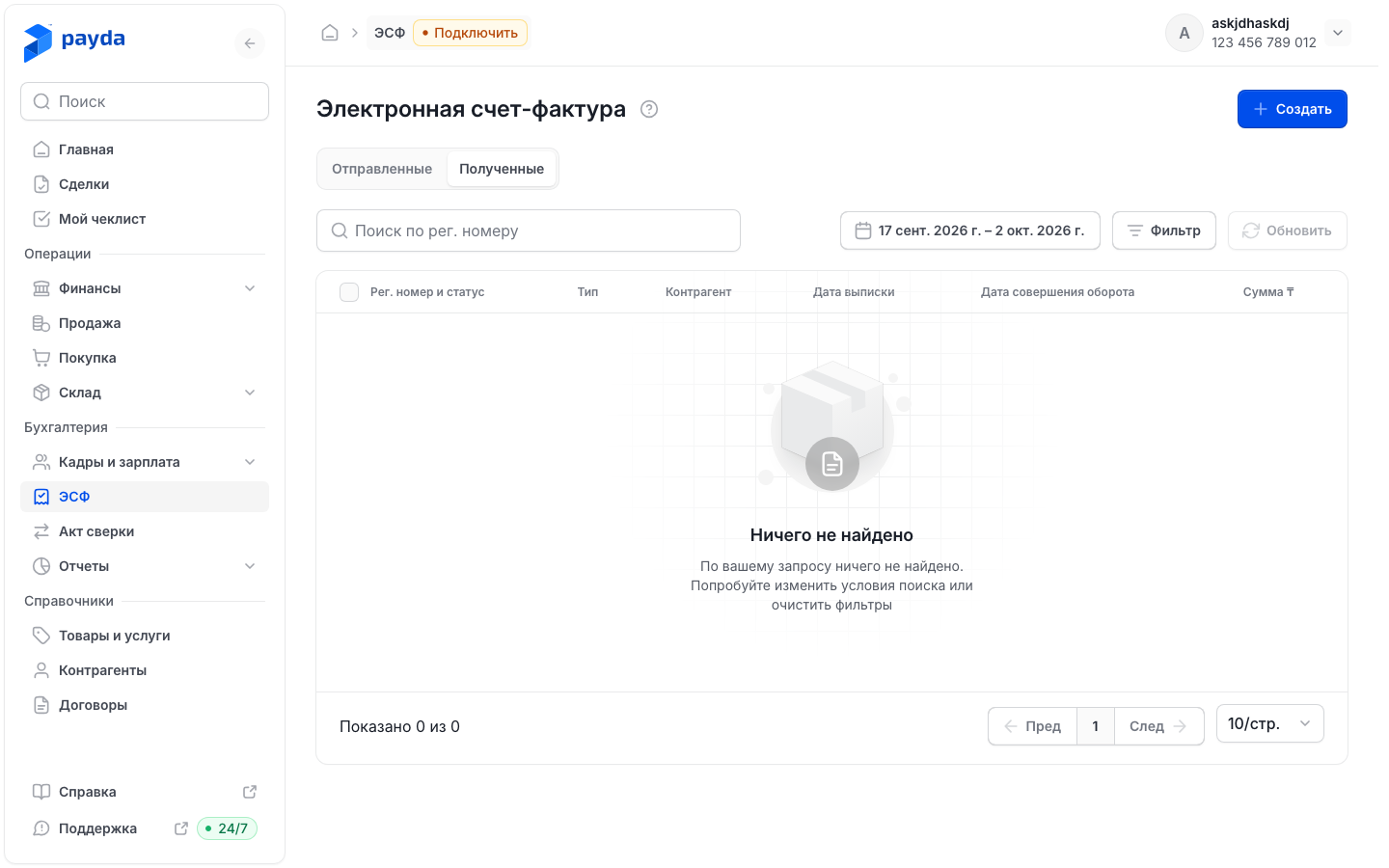
Click ЭСФ in the left menu and open the Полученные (Received) tab.
Check the period above the table: by default it is the last 15 days by turnover date. ESFs are loaded for the selected period.
Click Обновить (Refresh). The message «Выгрузка запущена» (loading started) appears — the ESFs load in the background.
After a while, reload the page: the loaded ESFs appear in the list.
Find an ESF with Поиск по рег. номеру (search by registration number) or Фильтр (Filter). In the Фильтры window set Дата оборота (turnover date), Контрагент (counterparty) or Статус ЭСФ (ESF status) and click Применить (Apply).
If statuses are ticked in the Фильтры window, Обновить loads only ESFs with those statuses. Clicking Обновить again may also refresh the statuses of ESFs loaded earlier.
When this tab's list is empty, it has no Создать новую (create new) button, and ticking rows does not open the Выбрано N (N selected) panel: a received ESF is issued by the supplier. The Создать (Create) button at the top still creates your own outgoing ESF.
Statuses of received ESFs
| Status | What it means |
|---|---|
| Не просмотрен (not viewed) | The ESF has arrived and has not been viewed yet |
| Доставлен (delivered) | The ESF was delivered to the recipient |
| Аннулирован (cancelled) | The ESF was cancelled |
| Аннулирован ИС ЭСФ для отнесения в зачет и на вычеты (cancelled by ИС ЭСФ for offset and deductions) | The ESF was cancelled by a decision of ИС ЭСФ |
| Аннулирован при отклонении СНТ (cancelled when the СНТ was declined) | The ESF was cancelled because its linked СНТ (goods consignment note) was declined |
| Аннулирован при отзыве СНТ (cancelled when the СНТ was revoked) | The ESF was cancelled because its linked СНТ was revoked |
| Отозван (revoked) | The ESF was revoked |
| Отклонен (declined) | The ESF was declined |
| Заблокирован ИС ЭСФ (blocked by ИС ЭСФ) | ИС ЭСФ blocked the ESF |
| В ожидании подтверждения получателя (awaiting recipient confirmation) | ИС ЭСФ is waiting for the recipient to confirm the ESF |
| В ожидании подтверждения отзыва получателя (awaiting recipient confirmation of revocation) | ИС ЭСФ is waiting for the recipient to confirm the revocation |
Open an ESF
- On the Полученные tab click an ESF row. The card opens read-only — the navigation line at the top says Просмотр ЭСФ (ESF view).
- Move between sections with the letters in the left column. Section B shows the supplier, section C your company.
- Скачать XML (Download XML) opens the ESF as an XML file in a new browser tab; Назад (Back) returns to the register.
Read-only
You cannot edit, confirm or decline a received ESF in Payda. If the ESF has a mistake, contact the supplier.
Goods receipt from an ESF
- Open the received ESF and expand the Связанные документы (linked documents) block.
- Click Добавить Поступление (add receipt) — a goods receipt form opens with the ESF data.
- Check the supplier, the items and Склад (warehouse), then save the receipt — details in Goods receipt.
While the Связанные документы block is collapsed, the Поступление badge with a plus sign does the same.
How to check it worked
- The ESF is on the Полученные tab with the status from ИС ЭСФ.
- The goods receipt is in the Покупка (Purchases) section and in the ESF's Связанные документы block.
Common problems
| What you see | Why | What to do |
|---|---|---|
| Обновить is inactive | No ИС ЭСФ connection, or Логин ИС ЭСФ (ИС ЭСФ login) is empty in the company details | Connect and check the login — see Connect to ИС ЭСФ |
| The ESF you need is not in the list | Its turnover date is outside the period above the table, or it has not been loaded yet | Widen the period, click Обновить and reload the page after a while |
| «Ничего не найдено» (nothing found) | No ESFs have been loaded for the period yet, or the filter is too narrow | Click Обновить, check the period and Фильтр |
| After Очистить (Clear) in the Фильтры window the list shows sent ESFs | Очистить resets all criteria, including the tab, and the period returns to the last 15 days | Open the Полученные tab again |
| «Связь с основанием не создана» (link to the source document not created) when saving the receipt | The receipt was saved but not linked to the ESF: the ESF has no link ID | Do not create the receipt again — it is already in Покупка. If you need the link, contact support |
What next
- Goods receipt — complete the receipt created from the ESF.
- Issue and send an ESF — if you are the one issuing ESFs.