
Messages in the app
Why you need this
The Сообщения (Messages) section of the Payda mobile app collects notifications about what happens in your company — for example, about documents, payments, deals, requests and EDO (ЭДО, electronic document management).
Notifications are sorted into folders. From a message you can go straight to the document or take an action, without hunting for it in the app's sections.
What you need
- A selected company (in your personal account the tab shows no counter). Each company has its own messages: to see another company's messages, switch to it — see Several companies.
Step by step
Folders
Open the Сообщения tab at the bottom of the screen. The number on the tab is how many unread messages there are across all folders; more than 99 is shown as «99+».
Find the folder you need. A folder row shows its name and the latest message, and the blue number on the right is how many unread messages it has.
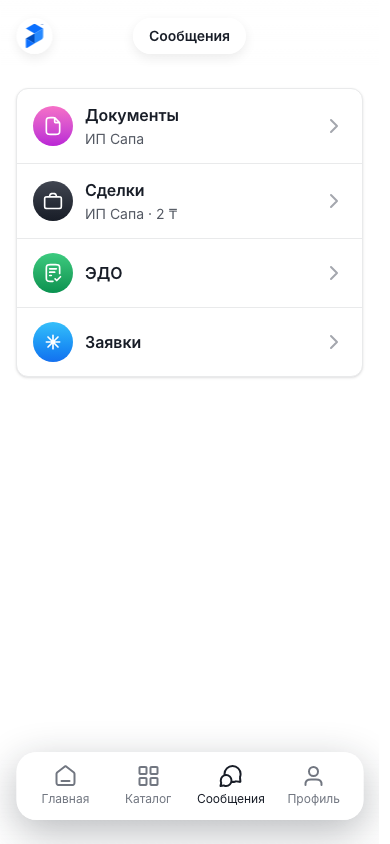
Tap the folder row — its message feed opens.
You do not create folders: each one appears by itself together with its first message. Until there are any messages, the screen says «Пока нет сообщений» (No messages yet) and «Папки появятся вместе с первым сообщением» (Folders appear with the first message).
While the app is open, new messages and counters update by themselves within 15 seconds. To refresh the folder list right away, pull it down.
Message feed
Read the latest messages: a folder opens at the end of its feed. The feed works like a chat — older messages at the top, newer ones at the bottom.
To see earlier messages, scroll the feed up — they load by themselves.
Tap a button on a card to open the related document or take an action. What the buttons do is described below.
To go back to the folder list, tap the arrow in the top left corner.
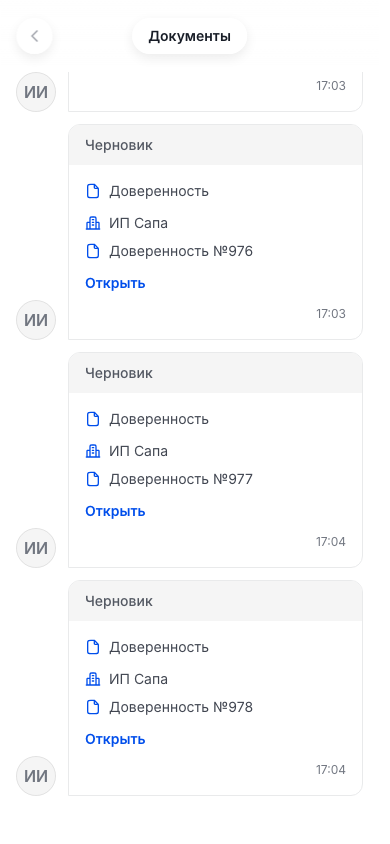
Messages are grouped by day: each group has a date above it, for example «28.09.2026», and today's messages have «Сегодня» (Today). A new message appears at the bottom of the feed by itself within 15 seconds: the pull-down gesture does not work in the feed.
A message about a document, a payment, a deal or a request is a card. What it contains depends on the message:
- a coloured strip at the top — the status;
- the type, such as the kind of document, and the amount in large print;
- under the amount, a note such as «Сегодня» (Today) or «3 дня назад» (3 days ago);
- data lines — for example, the counterparty and the document number;
- a comment in a frame, for example from your accountant;
- buttons, and the time of the message in the bottom right corner.
To the left of the card is the sender: a person's initials or the Payda icon. Text messages look like a chat: the sender's name and the time sit above the text, and when there is no name it says «Payda Pro».
Button labels depend on the message and its status. A button does one of three things:
- opens a screen in the app — for example, a document or a deal;
- opens an external link;
- performs an action right in the message. While it runs, a spinner turns on the button, and then the card updates — for example, its status and buttons change.
Some messages open the related screen when you tap the card itself or the Открыть (Open) link under the text.
A message counts as read as soon as at least half of its card has been on the screen. You do not need to tap it: the numbers on the folder and on the tab go down within a second.
How to check it worked
Once every unread message in a folder has been on the screen, the blue number next to the folder disappears and the number on the Сообщения tab goes down. When all folders are read, the tab shows no number.
Common problems
| What you see | Why | What to do |
|---|---|---|
| «Пока нет сообщений» and «Папки появятся вместе с первым сообщением» | This company has not received any messages yet | Nothing to do: a folder appears by itself with the first message |
| «В этой папке пока нет сообщений» (No messages in this folder yet) | The folder has no messages | Go back to the folder list with the arrow in the top left corner |
| The number on a folder or on the tab does not go away | Some unread messages are higher up the feed and have not been on the screen yet | Open the folder and scroll the feed up to the earliest unread message |
| A message you expect is missing | Another company is selected: each company has its own messages | Switch to the right company — see Several companies |
| The folder list opened again instead of the feed | This folder no longer exists | Pick a folder from the refreshed list |
| The feed does not refresh when you pull it down | The pull-down gesture does not work in a folder feed | Wait: new messages appear at the bottom of the feed by themselves. The folder list does refresh with the gesture |
What next
- Signing EDO documents on a phone — how to sign a document that came through EDO.
- What you can do on a phone — the other sections of the app.