
Paying salaries and taxes with a payment batch
Why you need this
A batch gathers the payment orders for a payroll sheet: salaries — grouped by the employees' banks, taxes and contributions — one payment order per tax. The finished batch is exported to the bank in one file, and Payda shows what has already been exported and paid.
What you need
- A saved payroll sheet — Payroll sheet for salaries and taxes.
- The company account the money leaves from and the employees' salary accounts — Employee account.
- For IPN (personal income tax) and SN (social tax) — Код УГД по месту нахождения (UGD, state revenue office code by location) in the company details, see Taxes.
Step by step
Batch list
In the menu open Финансы (Finance) → Группа платежей (payment batches).
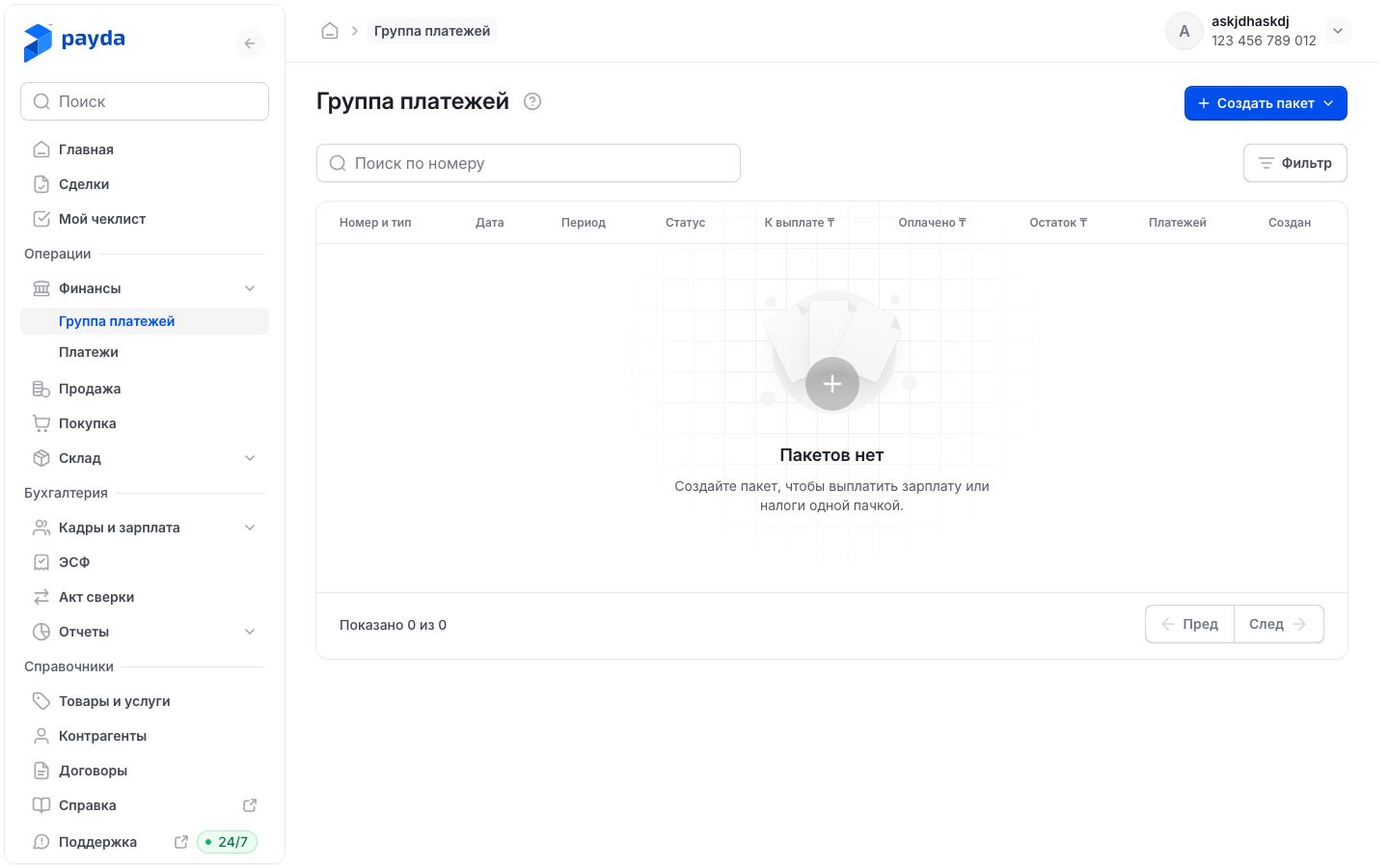
To find a batch, enter its number in Поиск по номеру (search by number) or press Фильтр (Filter) and set Период пакета (batch period), Тип (type), Статус (status) or Дата документа (document date), then press Подтвердить (Confirm). A filter is removed with the cross on its chip above the table.
Press a row to open the batch.
In the Номер и тип (number and type) column the number is followed by Зарплата (salary) or Налоги (taxes). К выплате ₸ (to pay) is the batch amount, Оплачено ₸ (paid) is how much is already paid, Остаток ₸ (balance) is the difference.
| Status | Meaning |
|---|---|
| Черновик (draft) | The batch is saved, nothing has been exported to the bank yet |
| Частично выгружен (partly exported) | Some of the payments are exported |
| Выгружен (exported) | All payments are exported |
| Частично оплачен (partly paid) | Some of the payments are paid |
| Оплачен (paid) | All payments are paid |
While there are no batches, the list says «Пакетов нет» (no batches).
Creating a batch
A batch is opened in one of two ways:
- in Группа платежей press Создать пакет (create batch) and pick Зарплатный (salary) or Налоговый (tax);
- in a saved payroll sheet (Кадры и зарплата → Ведомости, HR and payroll → payroll sheets) press Создать платёжный пакет (create a payment batch), and in the «Создать платежный пакет?» window — Подтверждаю (I confirm). The sheet and the batch type are filled in for you.
The Платёжный пакет | Создание (payment batch, new) form opens:
- Payda assigns Номер документа (document number) itself — until the payments are calculated, the field says «Сгенерируется автоматически» (generated automatically). Дата документа is taken from the payroll sheet.
- Pick Кадровая ведомость (payroll sheet) — this field is required.
- Check Тип пакета (batch type): Зарплата or Налоги. Changing the type clears the sheet and the accounts you filled in.
- Fill in the batch according to its type — see below.
If the batch was opened from Группа платежей, the Кадровая ведомость list shows sheets of the current month. For a sheet from another month open that sheet and press Создать платёжный пакет in it.
Salary batch
- Once the sheet is chosen, the Платежи к созданию (payments to create) block shows the Платежей (payments) and Итого к выплате (total to pay) totals and a table. One row is one register for the employees' bank: «Реестр → …» (register) with the bank name. The link with the number of employees opens their list.
- In each row pick Счёт списания (debit account) — your account the money leaves from.
- Check Получатель (recipient) — the employees' bank — and Счёт получателя (recipient account). Payda fills them in from the employees' salary accounts.
- If the table is followed by «У сотрудников не заполнены зарплатные счета — банк-получатель придётся выбрать вручную.» (employees have no salary accounts — choose the recipient bank manually), pick the bank and its account yourself.
- When all three fields are filled in every row, the Сохранить пакет (save batch) and Создать и выгрузить (create and export) buttons become active.
Tax batch
- In the Источник и счёт списания (source and debit account) block pick Кадровая ведомость and Счёт списания.
- If the sheet has IPN or SN, check Область (region) and УГД in the Получатель бюджетных налогов (budget tax recipient) block — Payda fills them in from Код УГД по месту нахождения in the company details. The chosen UGD becomes the recipient of IPN and SN.
- Look at the Итого (total) block: Поручений (payment orders) and Итого к выплате.
- In the Список перечислений (list of transfers) block check two groups:
- Социальные налоги (social contributions) — OPV, OPVR, SO, OSMS, VOSMS (pension, social and health insurance contributions): Payda fills in the recipient and account; if it cannot find them, the row says «Заполните вручную» (fill in manually);
- Бюджетные налоги (budget taxes) — IPN and SN: the recipient and account come from УГД. Until they are set, the row says «Заполните вручную» (fill in manually) — pick Получатель and Счёт получателя in the row itself.
- Press the arrow on the left of a tax row. КБК (KBK, budget classification code), КНП (KNP, payment purpose code) and Статья ДДС (cash-flow item) open. Payda takes KBK and KNP from the tax code — compare them, see KBK. They cannot be changed here: an edit in the batch is not saved, the payment order gets the codes for the tax kind. If you need another code, fix it in the payment order itself after the batch is created. Pick Статья ДДС if you want.
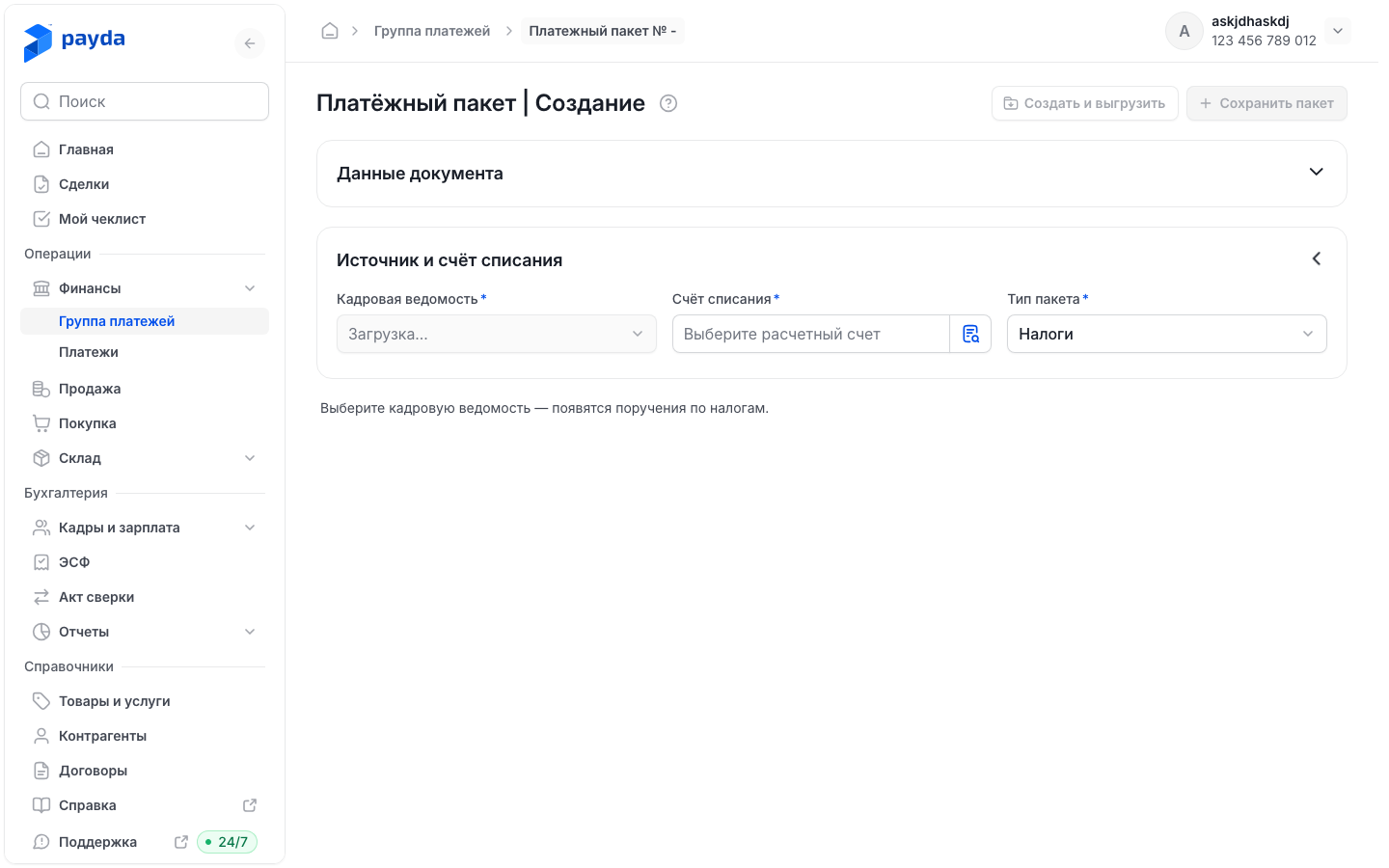
- When every tax has a recipient and an account, the Сохранить пакет and Создать и выгрузить buttons become active.
If the sheet has no tax amounts, the list is replaced by «В выбранной ведомости нет налогов к оплате.» (the chosen sheet has no taxes to pay).
Exporting to the bank
- Press Сохранить пакет to save the batch without exporting, or Создать и выгрузить — then a file for the bank's client software downloads right away.
- The Платёжный пакет (payment batch) opens with its number and status. The Платежи (payments) block has the К выплате, Оплачено and Остаток cards and a table of payment orders with the Статус («Оплачен» or «Не оплачен» — paid or not paid) and Выгрузка (export) columns.
- Press Экспорт в банк (export to bank). Checkboxes appear in the table: payments not yet exported are already selected.
- Adjust the selection if needed and press Выгрузить выбранные (N) (export selected). Отмена (Cancel) closes the selection without exporting.
- Upload the downloaded file to the bank's client software.
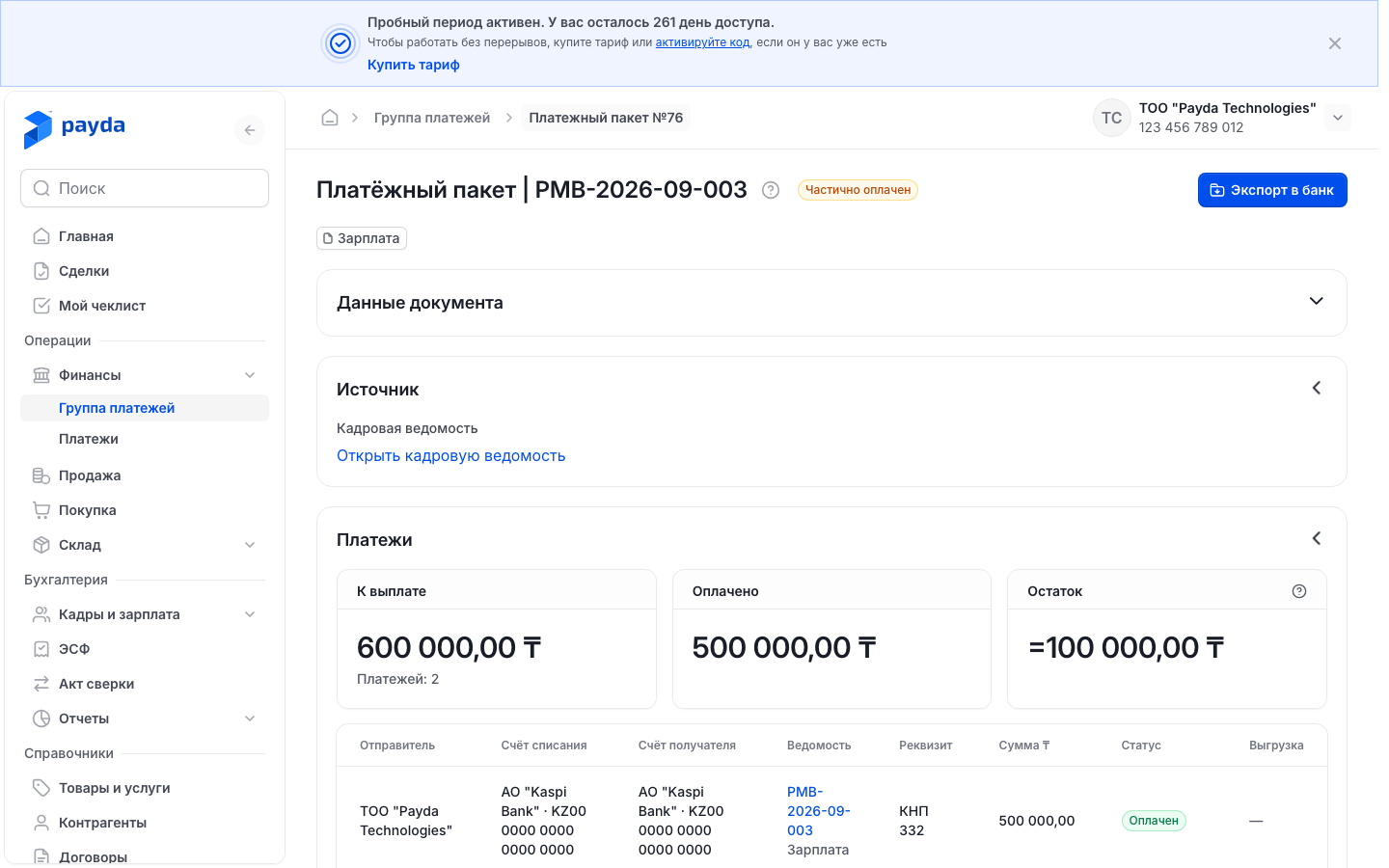
You can export in parts — the status becomes Частично выгружен, and after the rest is exported, Выгружен. Press a payment row to open the outgoing payment order, see Outgoing payment.
When the batch becomes paid
A batch payment becomes paid in one of two ways:
- upload a bank statement: the batch rows get the Отметим оплаченным (will mark as paid) mark, and if several payment orders match — Нужен выбор (choice needed), with batch options labelled «Пакет №…», see What happens to each row;
- open the payment order and set Оплачено (paid) to Да (yes) with a date.
While only some payments are paid, the batch status is Частично оплачен; when all are paid, it is Оплачен. Остаток shows how much is still unpaid.
How to check it worked
After an export the batch status is Выгружен, or Частично выгружен if not everything was exported. After a statement upload the status is Оплачен, and Остаток ₸ in the list is zero.
Common problems
| What you see | Why | What to do |
|---|---|---|
| Сохранить пакет and Создать и выгрузить are inactive in a salary batch | No sheet is chosen, its payments are still being calculated, or a register lacks Счёт списания, Получатель or Счёт получателя | Wait for the Платежи к созданию table and fill in all three fields in every row |
| Сохранить пакет and Создать и выгрузить are inactive in a tax batch | No sheet with taxes is chosen, or a tax has no recipient and account — the row says «Заполните вручную» | Pick УГД, or pick the recipient and account in the tax row |
| The right УГД cannot be picked in the list | This office has no payment recipient set up | Pick Получатель and Счёт получателя in the IPN and SN rows manually |
| «Заполните обязательные поля пакета» (fill in the required batch fields) | Счёт списания is not chosen in a tax batch | Pick the account in the Источник и счёт списания block |
| «В выбранной ведомости нет налогов к оплате.» | The sheet has no tax amounts | Pick another sheet or check the accruals |
| «Пакет создан, но не выгружен» (batch created but not exported) | The batch was saved but the file was not built — the reason is in the message | The batch opens: fix the reason and press Экспорт в банк |
| Выгрузить выбранные (0) is inactive | No payment is selected | Select payments in the table |
| «Не удалось выгрузить пакет» (could not export the batch) | The file for the bank was not built | Check Счёт списания and Счёт получателя in the batch table and export again |
| «Пакет не найден» (batch not found) | The link leads to a batch that does not exist in the current company | Go back to Группа платежей and open the batch from the list |
What next
- Employees and payroll — the payroll sheet a batch is built from.
- Uploading a statement and exporting payment orders to the bank — how payments get marked as paid.
- KNP, KBK, UGD codes and countries — code reference books for taxes.