
Home page
Why you need this
The home page suggests what to do next. In your personal cabinet it helps you connect a company and choose your role; in a company cabinet it helps you create a document quickly, answer access requests and finish the setup.
What you need
- A signed-in Payda account.
Step by step
Two views of the home page
The home page opens right after you sign in and from the Главная (home) item in the left menu. What it shows depends on the selected account:
| View | When | What is on the screen |
|---|---|---|
| Personal cabinet | The «Физическое лицо» (individual) mode is selected | The role switch, Мои компании (my companies), Для руководителей (for directors), Для бухгалтеров (for accountants), Настройки доступа (access settings) |
| Company cabinet | A company is selected | Быстрые действия (quick actions), Настройки доступа (for the director), Руководство по настройке (setup guide) |
In both views a next-step card may appear at the top. The view changes when you switch the account in the card at the top right — see Switch to a company.
Next step
At the top of the home page Payda shows one card — the most important step right now. Once it is done, the card changes to the next one or disappears.
| Card | When it is shown | What to press |
|---|---|---|
| «Подключите компанию, чтобы начать» (connect a company to get started) | In the personal cabinet while you have no companies | Я руководитель (I am a director) — add your company; Я бухгалтер (I am an accountant) — request access to a client's company |
| «Ждем подтверждения от руководителя …» (waiting for the director to confirm) | In the personal cabinet after you sent a request to a company that the director has not accepted yet | Отменить запросы (cancel requests) — withdraw the request; Посмотреть все (view all) — open «Настройки доступа» |
| «Компания подключена. Кто будет вести учет?» (company connected, who will keep the books?) | In a company cabinet for the director, until the bookkeeping choice is made | Я сам (myself) or У меня есть бухгалтер (I have an accountant) |
| «… еще не принял приглашение» (has not accepted the invitation yet) | In a company cabinet for the director, until the accountant accepts the invitation sent to their phone number | Отменить приглашение (cancel the invitation) — withdraw it; Посмотреть все — open «Настройки доступа» |
| «С чего начать?» (where to start?) | In a company cabinet while it has no invoices for payment | Создать счет на оплату (create an invoice), Добавить контрагента (add a counterparty) or Посмотреть всех контрагентов (view all counterparties) |
The «… еще не принял приглашение» and «С чего начать?» cards can be closed with the cross — they will not appear again in this company. The others disappear only once the step is done.
У меня есть бухгалтер saves your choice and opens the page for adding a new company. To invite an accountant to the current company, press Пригласить (invite) in the «Настройки доступа» block — see Invite an accountant.
Personal cabinet
This is how the home page looks in the «Физическое лицо» mode:

- Choose your role with the Я руководитель / Я бухгалтер switch at the top right. The hint on the icon next to it says: «Смена роли меняет доступные инструменты, виджеты и списки компаний» (changing the role changes the available tools, widgets and company lists).
- The Мои компании block shows up to three of your companies. Each shows the plan term («Активен до …» (active until …) or «Истек» (expired)) and a line with the BIN (company tax ID), the tax regime («СНР», special tax regime, or «ОУР», general procedure), «НДС» (VAT payer) or «Без НДС» (no VAT) and your role («Руководитель», director, or «Бухгалтер», accountant). Press a company to go to its cabinet.
- Добавить компанию (add a company) — connect a new one, see Add a company;
- Посмотреть все — the «Мои компании» page with all your companies.
- The Для руководителей cards are Открыть демо компанию (open the demo company — a demo version of Payda Pro) and Найти бухгалтера в Payda Market (find an accountant in Payda Market). The Для бухгалтеров cards are Стать бухгалтером в Payda Market (become an accountant in Payda Market) and Изучить Payda Pro для аутсорс-бухгалтерий (explore Payda Pro for outsourcing firms). All four open in a new tab.
- The «У вас есть активный код» (you have an active code) strip appears when a code that has not been applied yet was paid for the phone number in your profile. Press it to open the «Активировать код» (activate a code) window — see Activation code.
On the right is the Настройки доступа block — see Access requests.
Company cabinet
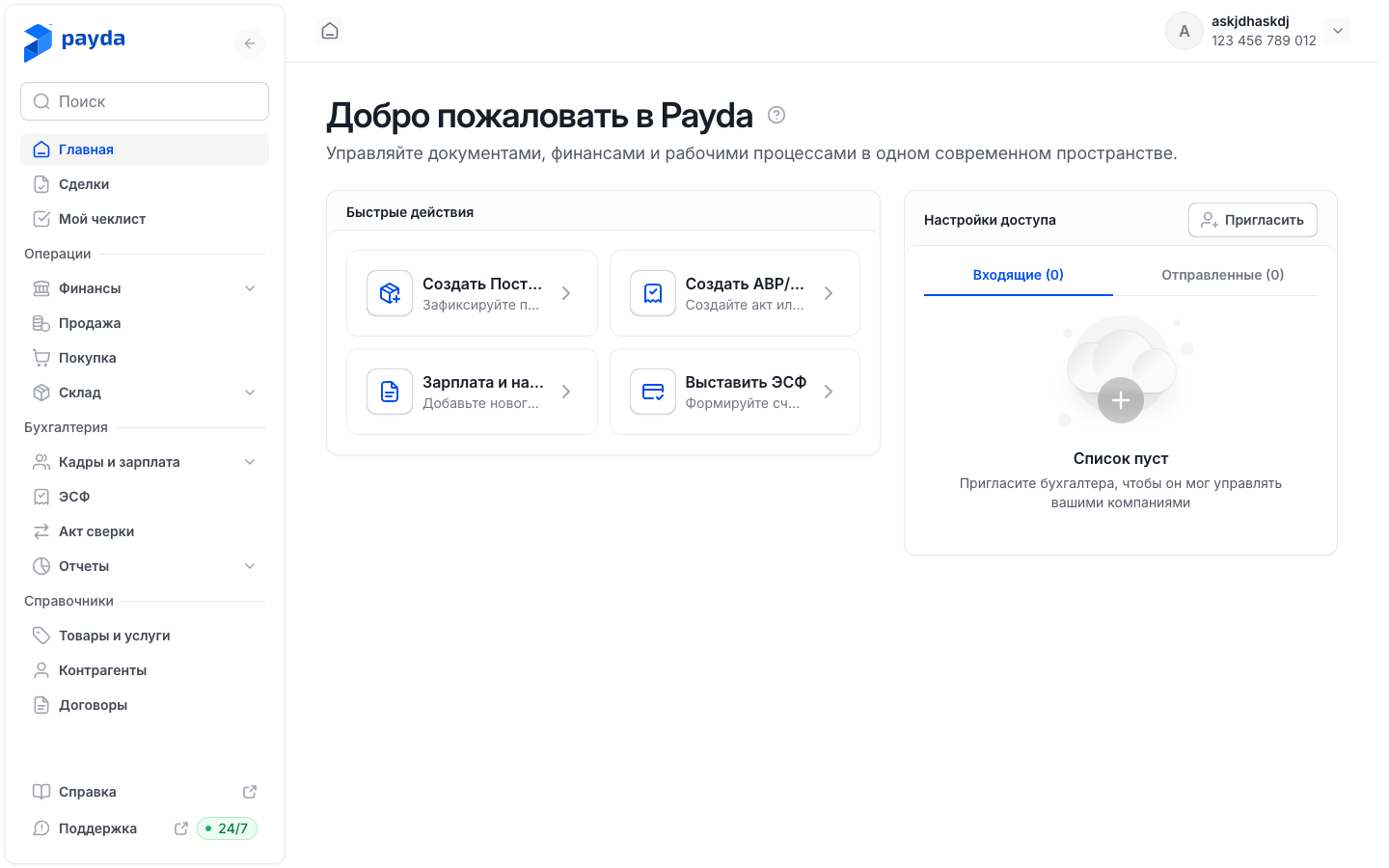
The Быстрые действия block has four cards:
- Создать Поступление (create a goods receipt) — the form for goods and services received from a supplier, see Creating a goods receipt;
- Создать АВР/Накладной (create an AVR or waybill) — the sale form from which the AVR (certificate of completed work) and the waybill are printed, see Sale;
- Зарплата и начисления (salary and accruals) — a new employee card, see Adding an employee;
- Выставить ЭСФ (issue an ESF) — the form for a new ESF (electronic invoice), see Create an ESF.
On the right are the Настройки доступа block (the director sees it) and, if the floating widget is closed, the Руководство по настройке card. Both are described below.
Access requests
The Настройки доступа block shows requests for access to a company. The director sees it in a company cabinet, and any user sees it in the personal cabinet. An accountant does not have it in a company cabinet.
- Switch between the Входящие (N) (incoming) and Отправленные (N) (sent) tabs:
- incoming are requests and invitations addressed to you: press Принять (accept) or Отклонить (decline);
- sent are your requests labelled «Ждем ответа от бухгалтера» (waiting for the accountant) or «Ждем ответа от руководителя» (waiting for the director).
- To invite an accountant to the company, press Пригласить. In the personal cabinet it is replaced by Отправить запрос (send a request): request access to a client's company.
- Все запросы (all requests) opens the full list on the «Настройки доступа» page.
More on access — Accountant access to a company.
Setup guide
In a company cabinet Payda tracks four initial setup steps:
| Step | Where it leads |
|---|---|
| Добавить юридический адрес (add the legal address) | «Реквизиты организаций» (company details), see Organisation |
| Добавить банковский счет (add a bank account) | «Клиент банка» (bank client), see The «Клиент банка» screen |
| Добавить контрагента (add a counterparty) | The counterparty reference book, see Counterparties |
| Добавить номенклатуру (add products) | The goods and services reference book, see Goods and services |
- In a wide browser window a floating widget at the bottom right shows the steps — on any page of the company cabinet. It shows «Выполнено N из 4» (N of 4 done) and «Следующий шаг: …?» (next step).
- Press the next step or the expand icon to open the «Активные задачи» (active tasks) list. Press a task to go to it. Completed tasks are crossed out.
- The widget closes with the cross. The company home page then shows the «Руководство по настройке» card with the line «N из 4 шагов выполнено» (N of 4 steps done). Press a step in it to go to that step, or Открыть (open) to bring the widget back.
Once all four steps are done, the widget and the card disappear.
How to check it worked
- The completed setup step has a tick, and the «Выполнено N из 4» counter went up.
- The card at the top of the home page changed to the next one or disappeared.
- Pressing a company in the Мои компании block opened that company's home page.
Common problems
| What you see | Why | What to do |
|---|---|---|
| «Не удалось переключиться на компанию» (could not switch to the company) | Switching from the Мои компании block failed | Try again or switch in the account card, see Switch to a company |
| No Я руководитель / Я бухгалтер switch | It exists only in the personal cabinet | Switch to «Физическое лицо» |
| The «С чего начать?» card is gone | It was closed with the cross, or the company already has an invoice for payment | Create documents from the left menu or the Быстрые действия block |
| У меня есть бухгалтер opened the page for adding a company | The button saves your choice and leads to connecting a new company | Go back to the home page and invite the accountant with Пригласить in «Настройки доступа» |
| No «Руководство по настройке» widget | The widget is closed, the personal cabinet is open, the browser window is narrow, or all steps are done | Press Открыть in the «Руководство по настройке» card on the company home page, or widen the window |
| No «Настройки доступа» block | You are an accountant in this company — the block is for the director | Check your requests on the home page in the «Физическое лицо» mode |
What next
- Sign-up and sign-in — how to sign in and sign up.
- Company details — fill in the company data.
- Plans and payment — the trial and paying for a plan.