
Signing EDO documents on a phone
Why you need this
EDO (ЭДО, electronic document management) lets you sign documents without paper. A waybill, an AVR (work completion act) or a reconciliation statement sent to a counterparty for signature is signed by both parties with an EDS (electronic digital signature), and after that it is legally binding — no courier needed.
The desktop cabinet has no EDO section: these documents are signed in the Payda mobile app through the eGov app. If the Payda app is open in a computer browser, AVRs and reconciliation statements that came to EDO as XML files can also be signed with an EDS key through the NCALayer program.
What you need
- A selected company that is named in the document as the supplier or the customer. Without a selected company the app has no ЭДО section.
- To sign on a computer — NCALayer running on it and an EDS key: a file on the computer or a token.
- The eGov Mobile app (for sole traders) or eGov Business (for legal entities and sole traders) on this phone, with your EDS in it.
- A document sent for signature. The supplier sends it from the cabinet with Отправить на подпись (Send for signature) — see Linked documents.
Step by step
Finding a document
Open the Каталог (Catalog) tab at the bottom of the screen and tap ЭДО in the Сервисы (Services) block. The rest of the app is described in What you can do on a phone.
Or open the Главная (Home) tab and tap Смотреть все (View all) in the ЭДО block. The block appears if there were EDO documents in the last month and shows how many await signature.
Pick a tab:
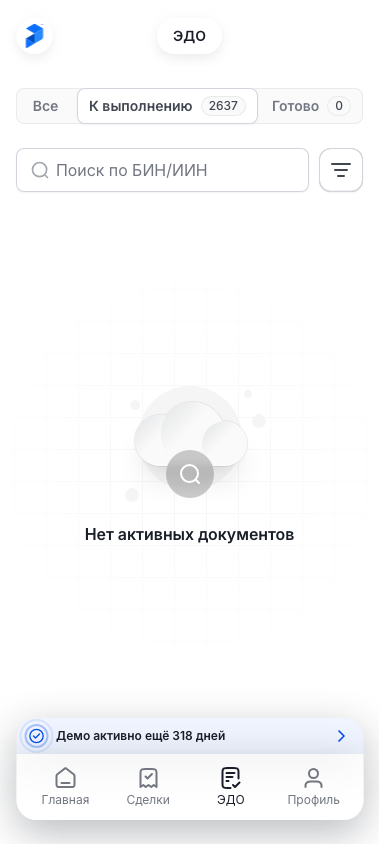
- К выполнению (To do) — opens first and holds documents awaiting signature;
- Готово (Done) — documents move here after you sign them;
- Все (All) — every document.
К выполнению and Готово show the number of documents next to the name. The screen remembers the selected tab: when you come back from a document, you land on it again.
Enter the counterparty's BIN or IIN in Поиск по БИН/ИИН (Search by BIN/IIN). A BIN (company tax ID) belongs to a company, an IIN (personal tax ID) to a sole trader or a person.
Narrow the list with the chips under the search:
- Исходящие (Outgoing) — documents you sent, Входящие (Incoming) — documents sent to you;
- the Готово tab also has Ожидает (Waiting — the other party has not signed yet) and Завершен (Completed — signed by everyone).
Tapping the selected chip again clears the filter.
For finer filtering tap the filter icon to the right of the search — the Фильтры (Filters) window opens with Направление (Direction), Дата документа (Document date) and Контрагент (Counterparty, field БИН/ИИН контрагента).
Tap Применить (Apply). Сбросить фильтры (Reset filters) clears all filters at once.
Documents are grouped by date. Each card shows the status, the document type with its number and date, the counterparty, the amount and the direction — Входящий (incoming) or Исходящий (outgoing).
| Status | What it means |
|---|---|
| Ожидает подписи (Awaiting signature) | Signing is not finished yet |
| Подписан (Signed) | All parties have signed |
| Отклонён (Rejected) | The document was rejected and can no longer be signed |
| Ошибка подписания (Signing error) | A signature failed — open the document to see why |
Signing a document
Tap the document card. Its page opens with three blocks:
- Документ (Document) — the file with an Открыть (Open) button, Тип документа (type), Рег. дата (registration date), Рег. номер (registration number), Сумма с НДС (amount incl. VAT) and НДС (VAT); for a document without VAT the НДС line reads «Без НДС» (no VAT);
- Подписанты (Signatories) — Поставщик (Supplier) and Заказчик (Customer) marked Подписан (Signed) or Ожидание (Pending); Показать (Show) reveals the signer's ИИН/БИН, Руководитель (director) and Время (time);
- Детализация (Details) — the line items: Товары (goods) and Услуги (services).
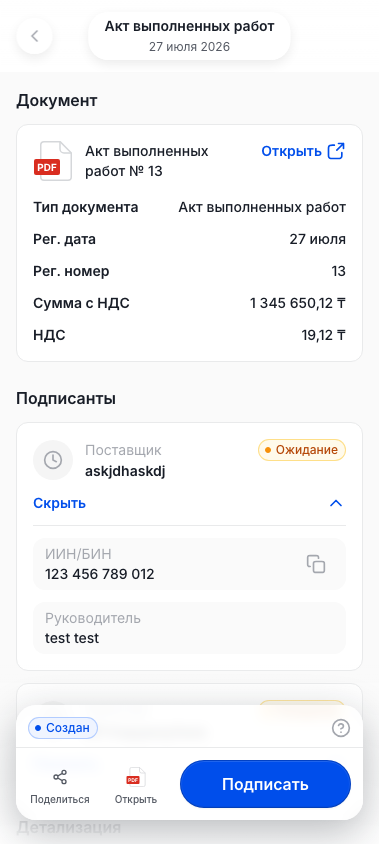
Tap Подписать (Sign) at the bottom of the screen. The button is there when it is your company's turn: the supplier signs first, then the customer.
In the Способ подписания (Signing method) window choose eGov Mobile (for sole traders) or eGov Business (for legal entities and sole traders).
The eGov app opens: sign the document there and come back to Payda. While the signature is being processed, the screen reads «Подписываем документ» (Signing the document).
Wait for the result and tap Понятно (Got it):
- «Вы подписали документ» and «Ожидается подпись второй стороны.» — your signature is in, now it is the counterparty's turn;
- «Документ успешно подписан» and «Обе стороны подписали документ. Теперь он имеет юридическую силу.» — both parties have signed and the document is legally binding.
If the page is open in a computer browser, the window shows a QR code instead of switching to eGov. Scan it with the eGov app on your phone.
On a computer the Способ подписания window also offers NCALayer — «Ключ ЭЦП на этом компьютере» (EDS key on this computer). It signs AVRs and reconciliation statements that came to EDO as XML files. Waybills and documents sent from the Payda cabinet with Отправить на подпись are signed through eGov: for them NCALayer is inactive and labelled «Этот документ подписывается только через eGov» (this document can only be signed via eGov).
- Start NCALayer and click NCALayer.
- In the NCALayer window choose your EDS key and confirm the signature. While the window is open, the method shows «Подтвердите подпись в окне NCALayer» (confirm the signature in the NCALayer window): if you cannot see the window, it opened behind the browser.
- Wait for the result: the screen shows «Подписываем документ», then the same result window as after eGov.
While there are no signatures and it is your turn, the bottom of the page shows the Создан (Created) status. After the first signature a Подписи (Signatures) row appears there — for example «1 из 2 подписан» (1 of 2 signed).
Tap the Подписи row: the window of the same name shows the status — Ожидает подписи (Awaiting signature) or Завершен (Completed) — and who signed when.
If your signature failed, an Ошибки (Errors) row with the number of errors replaces the status and the Подписи row. Tap it to see the reason, then sign the document again.
You can also sign in the printable-form viewer: Открыть shows the document full screen, with the same Подписать, Поделиться (Share) and Скачать (Download) at the bottom.
Waybills and AVRs also open from a sale card — the Статус документов (Document status) block; see Documents on a phone.
A document cannot be rejected in Payda: contact the counterparty.
Signing several at once
- Open the К выполнению tab and tick the documents. A panel with a counter appears at the bottom — for example «2 выбрано» (2 selected).
- To tick every document that can be signed, switch on Выбрать все (Select all).
- Tap Подписать with the number of ticked documents — for example Подписать (2).
- In the Способ подписания window choose eGov Mobile or eGov Business, sign the documents in the eGov app and come back to Payda. On a computer AVRs and reconciliation statements from EDO can be signed with NCALayer: the key is chosen once for all ticked documents. If a document from the Payda cabinet is among them, NCALayer is inactive — «Не все выбранные документы можно подписать в NCALayer» (not all selected documents can be signed in NCALayer).
- You will see «Документы подписаны» (Documents signed) and «Ваша подпись добавлена к выбранным документам. Документы перейдут в статус «Готово».» (they move to «Готово»). Tap Понятно.
Documents awaiting the other party's signature, and documents whose signature is being processed right now, have no tick box: there is nothing for you to sign yet. The Все and Готово tabs have no tick boxes at all — you can only tick documents on К выполнению.
If a signature fails, there is no separate message: the document gets the Ошибка подписания status in the list. Open it and sign it on its own; if the status has not updated, pull the list down. A signature made with NCALayer is first accepted by EDO: if a document does not accept it, you will see «1 документ не принят» (1 document was not accepted) with the reason right away, and if only some are accepted — for example «Подписано документов: 1 из 2» (documents signed: 1 of 2). Such a document stays ticked. An error in the signature itself shows up later as the Ошибка подписания status.
Sharing and downloading
File actions sit at the bottom of the document page and of the printable-form viewer:
- Поделиться (Share) — your company's document goes out as a link through the phone's share menu, and the recipient opens it without signing in to Payda. A document sent by a counterparty goes out as a PDF file.
- Открыть or Скачать — until everyone has signed, the document page shows Открыть (printable form full screen); after all signatures it shows Скачать (PDF to the phone). The printable-form viewer always shows Скачать.
- Оплатить (Pay) — appears on an invoice with the pay button switched on and opens the payment page. More in Paying an invoice by link.
If the share menu is unavailable, Payda copies the link to the clipboard and tells you so.
When you are the second to sign, the document page shows only Открыть and Подписать at the bottom until you sign. You can share such a document from the printable-form viewer.
Stamp and signatures on an invoice
You can switch the stamp and signatures on for a particular invoice right in its printable-form viewer. The settings icon is there only for an invoice and only when you are signed in to Payda.
- Open the invoice in Продажи (Sales) and, in the Статус документов block, tap Открыть next to the invoice's printable form.
- Tap the gear icon at the top right — the Печать и подписи (Stamp and signatures) window opens.
- Tick what to put on this invoice: Печать организации (company stamp), Подпись руководителя (director's signature), Подпись бухгалтера (accountant's signature), QR оплаты (payment QR code), Кнопка «Оплатить» (Pay button).
- Tap Применить (Apply). «Настройки печати сохранены» (print settings saved) appears and the invoice refreshes.
The choice applies to this invoice only; other invoices keep the company settings. If an image is not uploaded, the item reads «Не загружено» (not uploaded): tap Загрузить (Upload), add the file and tick the item.
Without a payment link Кнопка «Оплатить» is disabled and reads «Ссылка не задана» (link not set).
The Управлять печатью и подписями в реквизитах (manage stamp and signatures in company details) link leads to the default settings — see Company details.
If the document was opened by link
A document can be sent as a link: with Поделиться in the app or Переслать (Forward) in the cabinet. The recipient opens it in a browser without signing in to Payda and sees:
- the Документ, Подписанты and Детализация blocks;
- at the bottom — Поделиться and Скачать, plus Оплатить on an invoice with the pay button switched on.
A document cannot be signed without signing in. If you are a party to the document and use Payda, sign in to the company the document is addressed to and open the link again. When it is your turn, Подписать appears at the bottom.
If the link was copied incompletely or is no longer valid, the page shows «Не удалось загрузить документ» (could not load the document) and «Попробуйте обновить страницу позже» (try refreshing the page later).
How to check it worked
A document you signed moves to the Готово tab. On the document page your side in the Подписанты block reads Подписан, and the count in the Подписи row has gone up.
When both parties have signed, the Подписи row at the bottom reads «2 из 2 подписан», and Скачать takes the place of Открыть.
Common problems
| What you see | Why | What to do |
|---|---|---|
| «Нет активных документов» (no active documents) | This tab has no documents | Check Все and Готово. A document is sent from the cabinet with Отправить на подпись |
| «Ничего не найдено» (nothing found) | Nothing matches the search and filters | Clear the search and tap Сбросить фильтры in the Фильтры window |
| A document sent from the cabinet is not in the list | EDO does not accept a document instantly | Wait a little and pull the list down to refresh it |
| A document has no tick box | It awaits the other party's signature, its signature is still being processed, or you are not on the К выполнению tab | Tick documents on К выполнению. Documents awaiting the other party need no signature from you |
| «Подписание недоступно» and «Выбранные документы нельзя подписать» (signing unavailable) | The ticked documents lack the data needed for signing | Untick them and open the document: if it has Подписать, sign it on its own |
| «Не удалось отправить на подписание» (could not send for signing) | The request to eGov failed | Tap Подписать again in a couple of minutes |
| There is no NCALayer method | The page is open on a phone or in the Payda app | NCALayer works only on a computer — sign through eGov |
| NCALayer is inactive, «Этот документ подписывается только через eGov» or «Не все выбранные документы можно подписать в NCALayer» | This is a waybill or a document sent from the Payda cabinet — or the ticked documents include one | Sign it through eGov or untick it |
| «NCALayer не запущен» (NCALayer is not running) | NCALayer is not open or not installed | Start NCALayer and click NCALayer again. The program is installed from the NCA RK website |
| «Подписание отменено» (signing cancelled) | The NCALayer window was closed without signing | Click NCALayer again and confirm the signature |
| «Не удалось подписать в NCALayer» (could not sign in NCALayer) | NCALayer did not sign with the chosen key | Check that the EDS key is valid and sign again |
| «Не удалось скачать документ для подписи» or «Не удалось отправить подпись» (could not download the document for signing / send the signature) | The document file did not download or the signature did not reach EDO | Sign again a little later |
| «1 документ не принят» or «Подписано документов: 1 из 2» and «Причина: …» (not accepted / documents signed, reason) | EDO did not accept the signature: for example, the document is already signed or its status changed | Pull the list down and open the document |
| «Подписан некорректным ЭЦП» and «Используйте корректный ЭЦП для подписания документа» (wrong EDS) on the document page | The EDS was issued to a different company or person | Sign the document again with the EDS of the company named in it |
| «Не удалось подписать документ» and «Произошла ошибка при подписании. Попробуйте подписать документ ещё раз» (signing failed) on the document page | The signature did not go through | Tap Подписать again |
| The «Подписываем документ» screen does not go away | The signature is still being processed | After a few seconds a close cross appears at the top right. Close the screen — the result shows up once the signature goes through |
| There is no Подписать button | It is not your turn to sign, or a different company is selected | Check the Подписанты block and the company you are working in |
| «Не удалось создать ссылку» (could not create the link) | The document link was not issued | Tap Поделиться again a bit later |
| There is no «Отклонить» (Reject) button | A document cannot be rejected in Payda | Contact the counterparty |
What next
- Linked documents — how to send a waybill or an AVR for signature from the cabinet.
- Documents on a phone — how to create a document in the app.
- Paying an invoice by link — what the customer sees when paying an invoice.